Changing primary area codes
Use this option to manually add or update primary area codes for phone numbers for a specific zip code or phone number prefix.
If your agency uses CU·Codes, you receive a file you use to automatically add and/or update all of the latest primary area codes to The Collector System at once. After you update The Collector System with the information from the CU·Codes file, you can use the steps in this procedure to update the primary area codes, if necessary. For more information about CU·Codes, contact your Finvi Support representative.
To change a primary area code:
-
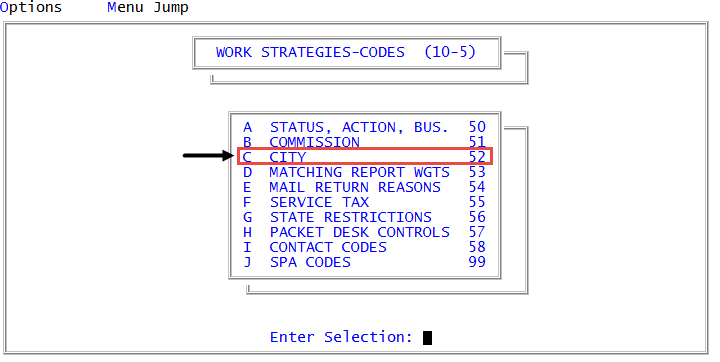
From the Master menu, navigate to
 Management Strategy > Codes > City (menu 10.5.52).
 - In the City Codes Update Routine window, select Update Area Code Changes, and press Enter or click Ok.
- In the Code Update Selection window, select Select Primary Area Codes to Update, and press Enter and click Ok.
- In the Enter Old Primary Area Code window, type the primary area code to change, and press Enter or click Ok.
- In the Enter New Primary Area Code window, type the new primary area code, and press Enter or click Ok.
-
In the Primary Area Code Update Selection, select one of the following, and press Enter:
Update area codes by zip code
- Select Select Zip Codes to Change.
- At the Enter Zip Code or Zip Code Range prompt, type the zip code, either individually or in a range, to associate with the new primary area code, and press Enter.
- Press Enter again after entering the final zip code or prefix range.
- Click Yes to Apply changes to zip code file? prompt.
Update area codes by phone number prefix
- Select Select Prefixes to Change.
- At the Enter Prefix or Prefix Range prompt, type the prefix, either individually or in a range, to associate with the new primary area code, and press Enter.
- Press Enter again after entering the final zip code or prefix range.
- To exit the routine, do the following:
- In the Enter Old Primary Area Code window, click Cancel.
- Click Yes to Apply changes to ACCOUNT file?
- Click Yes to Create note on Primary area code change?
- Click Yes to Clear area code work file?
- In the Code Update Selection window, click Cancel.
- In the City Codes Update Routine window, click Cancel.