Creating letter type codes
You can create letter type codes to exclude accounts from receiving letter/notices. After you create the code, enter the code into the Client Control record, in field 314 - LTR Code Exempt. For instructions, see Assigning letter type codes to a client.
To create a letter type code:
-
From the Master menu, navigate to
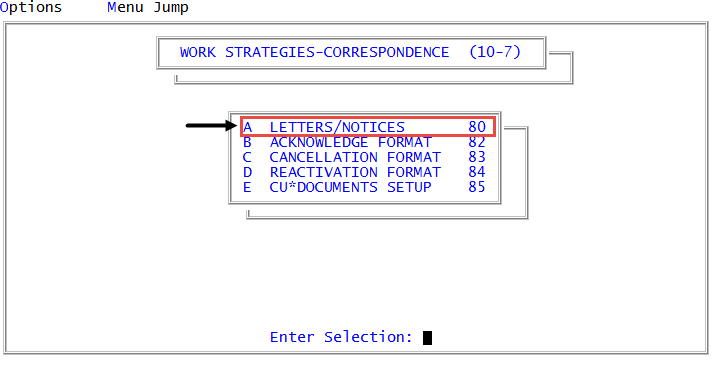
 Management Strategy > Correspondence > Letters/Notices (menu 10.7.80).
 - In the Letters/Notices Setup window, select Letter Type Codes, and press Enter or click Ok.
- In the Letter Type Codes window, to assign a new letter type code to a letter/notice, select a letter/notice without a description next to it.
- In the Enter Letter Type Description window, do one of the following:
- To enter a new Letter Type description, type a description, and press Enter or click Ok.
- To update an existing Letter Type description, press Enter or click Ok. Proceed to Step 6.
- At the Limit letters by status code? prompt, do one of the following:
To ensure that letters/notices are not sent to accounts with certain status codes, click Yes.
Some letters/notices may have a legal status code while other letters/notices are not part of the legal process.
- To ensure letters/notices are not limited from being sent to accounts, click No and do one of the following:
- To save the letter type description, at the OK to File? prompt, press Enter or type Y, and press Enter.
- To discard your changes, at the OK to File? prompt, type N, and press Enter.
- In the Letter Types window, do one of the following:
- To send letters/notices of this type to accounts with the status codes you list, select Include by Status Code, and press Enter or click Ok.
- To exclude letters/notices of this type from being sent to accounts with the status codes you list, select Exclude by Status code, and press Enter or click Ok.
- In the Enter New Status code to "Include or Exclude" (DEL,?) window, do one of the following, and press Enter or click Ok.
- Type the status code to include or exclude. Repeat as necessary.
- To view a list of status codes, type ?.
- In the Status Codes window, select a status code from the list to include or exclude, and press Enter or click Ok. Repeat as necessary.
- To delete a status code, type DEL.
- In the Enter Status Code to Delete window, type the status code to delete, and press Enter or click Ok. Repeat the step as necessary.
- In the Enter New Status Code to Include or Exclude (DEL, ?) window, click Cancel.
- At the OK to File? (Y, N, /) prompt, do one of the following:
- To save your changes, type Y.
- To discard your changes, type N. Go back to Step 3.
- To go back and make changes, type /.