Creating standard commission codes
Commissions can be based on both age and dollar amount. For example, accounts of the same age but different dollar amounts can be assigned different commissions. For an example of how to create commission codes, see Sample commission code.
To create a standard commission code:
-
From the Master menu, navigate to
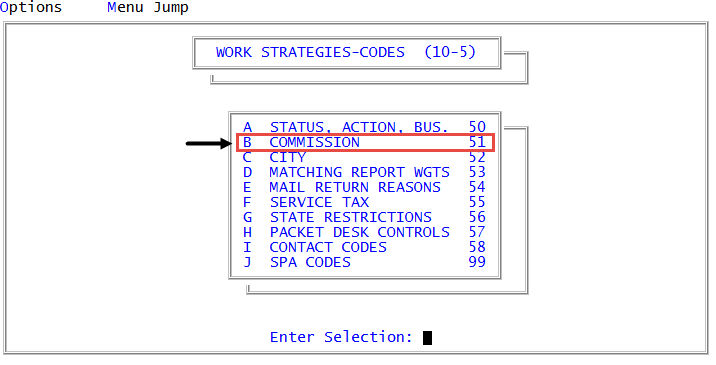
 Management Strategy > Codes > Commission (menu 10.5.51).
 - In the Commission Code Table window, select Update, and press Enter or click Ok.
-
In the Enter Commission Code window, type the new commission code, and press Enter or click Ok.
Commission codes must be seven or fewer letters long; they cannot contain numbers or symbols.
- At the code Not on File - Add? prompt, click Yes to add the new commission code.
- In the Type of Rate Structure window, select Standard Commission Code, and press Enter or click Ok.
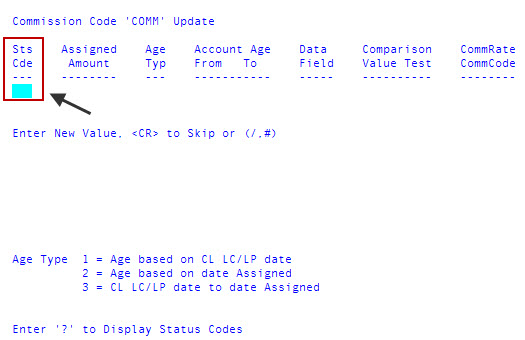
- In the Sts Cde field of the Commission Code code Update screen, do one of the following:
- If this rate is not based on status, leave blank, and press Enter.
- If you know the status code to test against, type it, and press Enter.
To choose from a list of status codes, type ?, and press Enter. In the Status Codes field, select the status code to use, and press Enter or click Ok.
- In the Assigned Amount field, do one of the following:
- If this rate is not based on amount, leave blank, and press Enter.
To qualify accounts for this commission rate when the assigned amount is less than the amount you enter in this field, type the amount, and press Enter.
For example, if you type "500", accounts with an assigned amount less than (but not equal to) $500 qualifies them for this commission rate.
When you press enter, the system automatically adds the less than symbol (<) before the amount you entered.
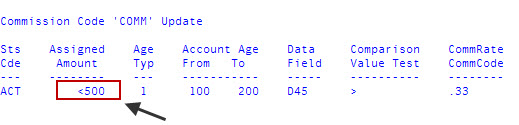
To qualify accounts for this commission rate when the assigned amount is equal to or greater than the amount you enter in this field, type the greater than symbol (>) and the amount, and then press Enter.
For example, if you type ">500", accounts with an assigned amount equal to or greater than $500 qualifies them for this commission rate.
-
In the Age Typ field, type the code for the date range used to determine the age that qualifies accounts for this commission rate, and press Enter.
Age type codes
1
From the client's last charge/last pay to the transaction date
2
From the assigned date to the transaction date
3
From the client's last charge/last pay to the assigned date
-
In the Account Age From field, type the lowest age of accounts to which this rate applies, and press Enter.
For example, if the range is from 0 to 30 days, type 0.
-
In the Account Age To field, type the highest age of accounts to which this rate applies, and press Enter.
For example, if the range is from 0 to 30 days, type 30.
-
To use data from a Debtor or Fiscal file attribute that is relevant to this commission rate, in the Data Field field, type D to indicate Debtor files or F to indicate Fiscal files, and then the field number (for example, D45 or F64). Press Enter.
To use multivalues, type the Debtor or Fiscal file indicator, the field number, a period (.), and then the multivalue. For example D3.7.
The system does not validate if the field is actually used.
-
In the Comparison Value Test field, type the operator to use followed by the value to compare against in the Data Field field, and press Enter.
Use the following operators to test the data:
Symbol
Meaning
=
Checks for data equal to this value.
#
Checks for data not equal to this value.
<
Checks for data less than this value.
>
Checks for data greater than or equal to this value.
- In the CommRate CommCode column, type one of the following, and press Enter.
- To use a commission rate, type the commission percentage rate as either a decimal or a fraction (for example: 33% = .33 or 1/3).
- To use another commission code, type it.
- Continue adding lines using Steps 6-13, as needed for your agency.
- To save your changes, in any field, type #, and press Enter.
-
At the OK to File?: prompt, do one of the following:
- To save your settings, press Enter.
- To exit the screen without saving the settings, type N, and press Enter.
- To continue making changes before saving, type /, and press Enter.
After you save your changes, the system displays commission code Filed in the bottom left corner of the screen and then returns to the Enter Commission Code window.