Deactivate or reactivate letter text
An agency may wish to stop using a certain letter text, while still keeping a copy of it on their system as a reference. This option allows a letter text to be deactivated so it cannot be requested by users going forward. Deactivated letters can be reactivated again, using this same option.
- To deactivate a letter text:
- In the Master menu, navigate to Management Strategy > Correspondence > Letters/Notices (menu 10.7.80).
-
In the Letters/Notices Setup window, select Text and then press Enter or click Ok.
- Select the Update Definition and Text option
-
In the Enter Text Name window, do one of the following, and press Enter or click Ok.
-
Type the text ID of the text you wish to deactivate, then press Enter.
-
To choose from a list of text IDs, type ?.
Texts which have already been deactivated will have an 'x' before their Text ID and a Description of Inactive.
-
-
In the Text Name window, select the Deactivate option, and press Enter or click Ok.
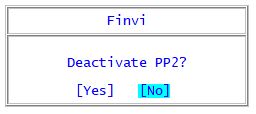
- At the Deactivate prompt, do one of the following:
- To deactivate the text, select Yes.
- To leave the text unchanged, select No.
- Notice Series
- Letter Sets or Multi-page Documents
- AFM Actions
- Macros
- Forward Client Letters
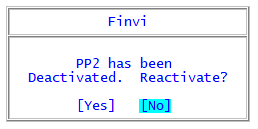
- To reactivate a letter text:
- Select Yes to reactivate the text.
- Select No to leave the text deactivated.
If the letter text being deactivated is referenced in any of the areas listed below, users will be alerted and prompted to confirm they still wish to deactivate the text.
Although text usage is identified, no action is taken by this routine. If changes are needed, users should select 'No' to not deactivate the text, then make any necessary changes before coming back to deactivate a text once it's no longer referenced.
Follow the same steps and prompts as above, only selecting a letter text which is currently deactivated. When the Deactivate option is used on a deactivated text, you will be prompted to reactivate it.