Deleting sub-WIPs
Because daily WIPs and sub-WIPs are separate lists, deleting a sub-WIP has no effect on your daily WIP.
To delete a sub-WIP:
-
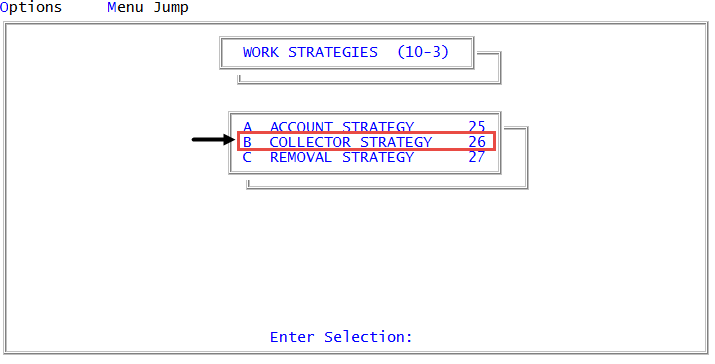
From the Master menu, navigate to
 Management Strategy > Work Strategies > Collector Strategy (menu 10.3.26).
When configuring sub-WIPs for collector desks working legal accounts, you can also access the same WIP controls from Legal > Setup > Collector Strategy (menu 13.1.1).
-
In the Enter Collector Number window, do one of the following:
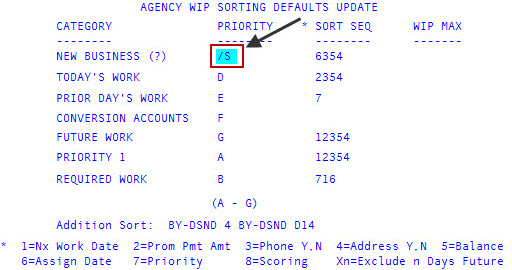
Create or change a sub-WIP for the agency
- Press Enter or click Ok.
- In the Priority field of the New Business (?) column of the WIP Sorting Defaults Update screen, type /S, and press Enter.
 Create or change a sub-WIP for a collector's desk
- Do one of the following, and press Enter or click Ok:
- If you know the collector desk number, type it.
- To choose from a list of collector desk numbers, type ?.
- In the Select Desk to Update window, select the desk number, and press Enter or click Ok.
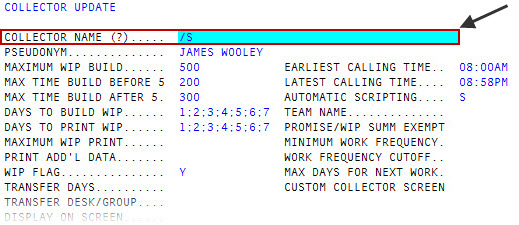
- In the Collector Name field of the Collector Update screen, type /S, and press Enter.
-
At the Categories to Access, Separate By Semicolons prompt, press Enter.
- In the Customized Statements for agency/collector window, select the Select statement to delete, and press Enter or click Ok.
- In the Description (/DEL to delete existing) window, type /DEL, and press Enter or click Ok.
- In the Customized Statements for agency/collector window, do one of the following:
- To continue deleting Select statements, follow Steps 4-5.
- If you are finished deleting custom statements, click Cancel.
- To exit the Desk agency/collector Sub-WIP Setup screen, type # in any field, and press Enter.
- At the OK to File? prompt, click Y to save your changes.