Viewing branches
The Display Branches option provides an easy way for you to view the branches currently set up for your agency. It is a good idea to review these setups before adding, changing, or deleting branch information. This display also shows the branch IDs currently in use which you will need to know when setting up new branch IDs.
Each branch ID displays with the branch name and the branches it has access to listed next to it.
To view branches:
-
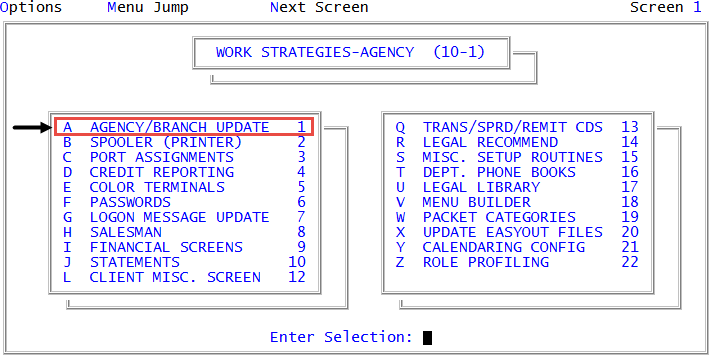
From the Master menu, navigate to
 Management Strategy > Agency > Agency/Branch Update (menu 10.1.1).
 - Select Display Branches, and press Enter or click Ok.
-
If you need to reference this information when setting new branches, to print this report, click the printer icon.

-
Press Enter to return to the Agency/Branch Update window.
If the display spans multiple screens, press Enter at each screen until you return to the Agency/Branch Update window.
The following is an example of the Valid Agency Branches screen:
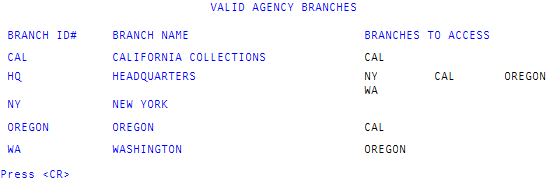
The following table describes the columns in the screen:
|
Column |
Description |
|
Branch ID# |
The identification code for the branch. |
|
Branch Name |
The name of the branch. |
|
Branches to Access |
The other branches the named branch can access. If the branch can access more than three branches, the list of branches continues on the next line. In the example above, the Headquarters branch has access to the New York, California, Oregon, and Washington branches. |