Assigning accounts to new batches for precollect accounts
You can use batches to keep track of groups of new accounts by client, by date, by business type, and so on.
The batch prompt can be set to automatically display as soon as you enter the precollect posting screen. If the automatic batch prompt is turned on, a default batch number is provided by the system if one is not entered. The default batch number is an asterisk followed by the initials of the employee entering the data. For example: *MAB.
Use this option to create a new batch to which you can add accounts. The system automatically assigns numbers to new batches.
To assign accounts to new batches for precollect accounts:
-
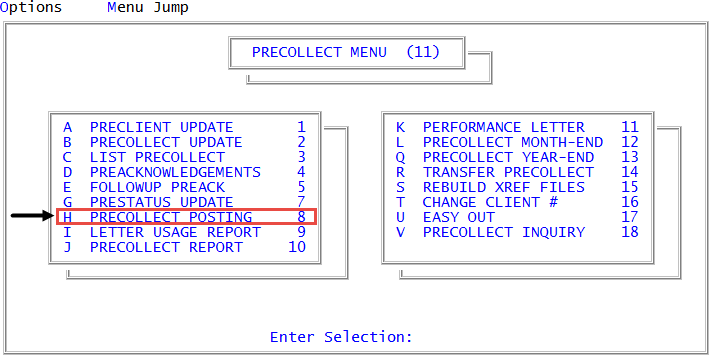
From the Master menu, navigate to
 Precollect > Precollect Posting (menu 11.8).
You can also access the preclient posting screen from Precollect > Precollect Update (menu 11.2).
- If the batch prompt does not automatically display, at the Enter PRECOLLECT # prompt, type B, and press Enter.
- In the Batch Number to Update window, select New Batch Number, and press Enter or click Ok.
- At the Do you want to enter the expected number and amount for this batch? prompt, do one of the following:
To enter the number of accounts and total dollar amount to include in this batch, click Yes.
This feature provides a verification against data entry errors. The batch cannot post until it balances against the number and amount you indicated it would contain.
- In the Enter the expected number of accounts in this batch prompt, type the number of accounts to include in the batch, and press Enter or click Ok.
- In the Enter the expected assigned amount for this batch prompt, type the total assigned dollar amount to include in the batch, and press Enter or click Ok.
- To create a batch without verification parameters, click No.