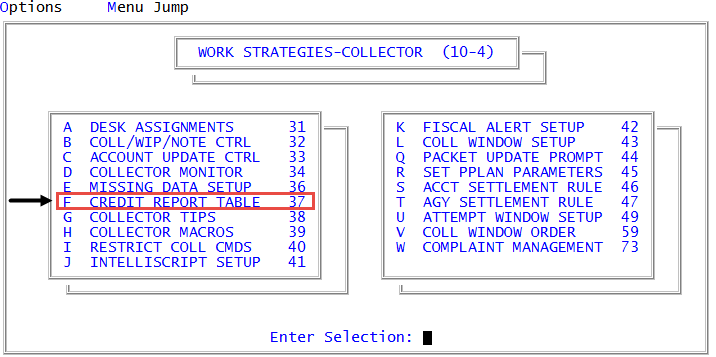
Adding entries to the credit reporting table
Use this procedure to add entries to the credit reporting table.
To add entries to the credit reporting table:
-
From the Master menu, navigate to
 Management Strategy > Collector > Credit Report Table (menu 10.4.37).
 - In the Update Credit Bureau Table window, select Update Table, and press Enter or click Ok.
-
In the Enter New Zip Prefix Range window, type a three‑digit zip code prefix or enter a range of zip code prefixes, and press Enter or click Ok.
For example, type 986 for Clark County, Washington, or type 980‑989 for the entire state of Washington.
-
In the Enter Text window, type the message to be displayed on the Collector screen when a credit report is requested for an account within the area you entered, and press Enter or click Ok.
The message is saved.
- In the Enter New Zip Prefix Range window, do one of the following:
- To exit without adding additional entries, click Cancel.
- To continue adding entries, repeat the procedure starting at Step 3.