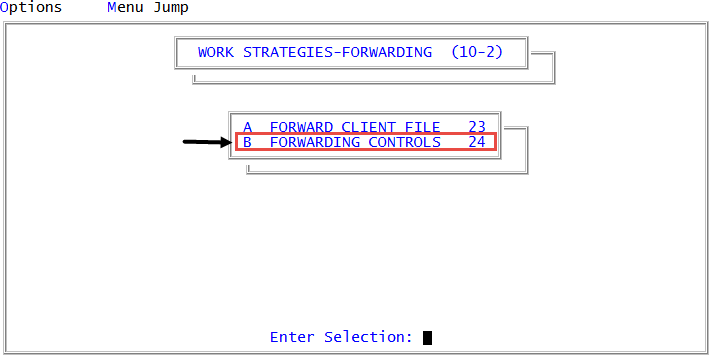
Assigning or changing city codes for forward agencies
Use this option to designate the collection agencies in various locales that will receive forward assignments from your agency by city code.
City codes are shortcuts used when entering city, state, and zip code information in Account Update, Client Update, and Forward Client Update. A code can be alpha characters, numbers, or a combination. Typically, zip codes are used as city codes. When a valid city code is entered in the City field, the system populates the City, St, and Zip fields.
To assign or change a city code for a forward agency:
-
From the Master menu, select
 Management Strategy > Forwarding > Forwarding Controls (menu 10.2.24).
 - In Forwarding Controls window, select Update Client # in CU·Codes, and press Enter or click Ok.
- In the Enter Forward Client window, type the number assigned to the forward client, and press Enter or click Ok.
-
At the Update a range of zip codes? prompt, do one of the following:
Assign a range of zip codes for this forward client
- Click Yes.
- In the Enter Beginning Zip Search window, type the first zip code to search for forward agencies, and press Enter or click Ok.
- In the Enter Ending Zip Search window, type the last zip code search for forward agencies, and press Enter or click Ok.
Assign a single zip code
- Click No.
- In the City Code field, if you are creating a new city code, type it, and press Enter.
- If you are using an existing city code, type it, and press Enter. Proceed to Step 12.
Most agencies use a zip code or postal code in this field.
- At the New city code. Add? prompt, click Yes.
- In the City (R, Del, #) field do one of the following, and press Enter:
- Type the city for the city code.
- To use the city from the last record, type R.
- To delete the city code, type DEL.
- In the State field, type two-character state or province abbreviation for the city code, and press Enter.
- In the Zip field, the code you entered in the City Code field displays in this field. Press Enter to continue.
- In the Area Code field, type the area code for the zip code.
- In the Standard Time Zone Offset field, type the number of hours to add to Pacific Standard Time for this city's time zone, and press Enter.
-
In the Daylight Savings Time Zone Offset field, type the number of hours to add to Pacific Daylight Time for this city's time zone, and press Enter.
Remember to compensate for Hawaii and Arizona, which do not observe Daylight Saving Time.
In the Forward Client field, if you entered an existing city code in the City Code field, the name of the forward agency for the city code displays.
- At the OK to File? prompt, do one of the following:
- To save your changes, press Enter.
- To discard your changes, type N, and press Enter.
- To continue making changes in the City Codes Update screen, type /, and press Enter.