Configuring standard WIP scoring criteria
When you use scoring, The Collector System assigns points to each account when it meets certain criteria. The system then adds up all of the points for each account and sorts the account order of the WIP by placing accounts with higher scores ahead of accounts with lower scores. The largest possible score is 1000.
To configure standard WIP scoring criteria:
-
From the Master menu, navigate to
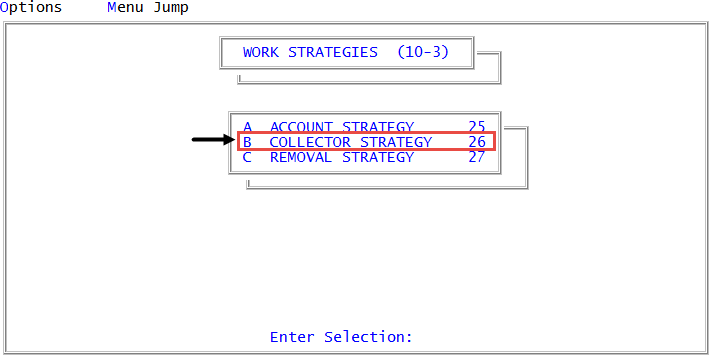
 Management Strategy > Work Strategies > Collector Strategy (menu 10.3.26).
When configuring standard WIPs for collector desks working legal accounts, you can also access the same WIP controls from Legal > Setup > Collector Strategy (menu 13.1.1).
-
In the Enter Collector Number window, do one of the following:
For the agency's standard WIP
Press Enter or click Ok.
For a collector desk's standard WIP
- Do one of the following, and press Enter or click Ok:
- If you know the collector desk number, type it.
- To choose from a list of collector desk numbers, type ?.
- In the Select Desk to Update window, select the desk number, and press Enter or click Ok.
-
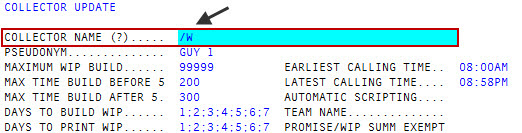
In the Collector Name field of the Collector Update screen, type /W, and press Enter.
- Do one of the following, and press Enter or click Ok:
-
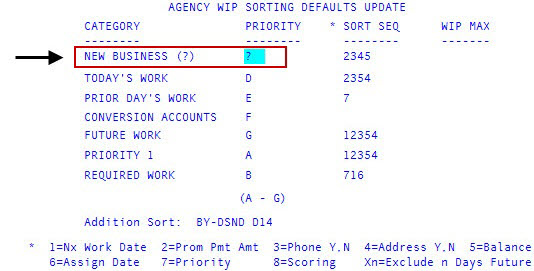
In the Priority field of the New Business category in the agency/desk WIP Sorting Defaults Update screen, type /WS, and press Enter.
-
In the first Balance Less than field of the agency/desk WIP Scoring Defaults Update screen, type the first balance amount to use for assigning a score, and press Enter.
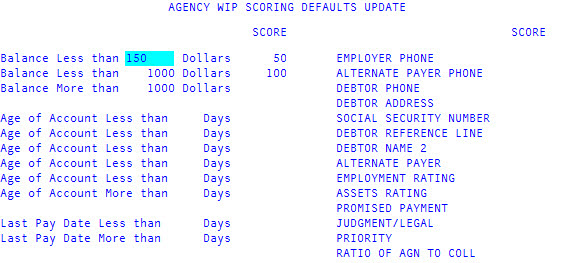
- In the Score field, type the score to assign to an account when its balance is less than the amount in the first Balance Less than field, and then press Enter.
- In the second Balance Less than field, type the second balance amount to use for assigning a score, and press Enter.
-
In the Score field, type the score to assign to an account when its balance is less than the amount in the first Balance Less than field, and then press Enter.
Remember to enter the balances in ascending order in the Balance Less than fields.
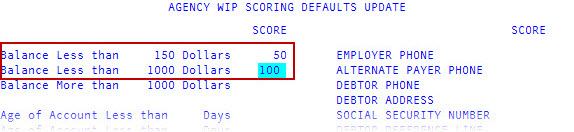
In the Balance More than field, The Collector System automatically enters the number from the second Balance Less than field and moves the cursor to the Score field.
- In the Score field, type the score to assign to an account when its balance is more than the amount in the Balance More than field.
- In the first Age of Account Less than field, type the number of days between the current date and the assigned date, and press Enter.
- In the Score field, type the score to assign to an account when its age is less than the number entered in the Age of Account Less than field, and press Enter.
-
Repeat Steps 9-10 for the remaining Age of Account Less than fields and their corresponding Score fields, as seen in the following example:
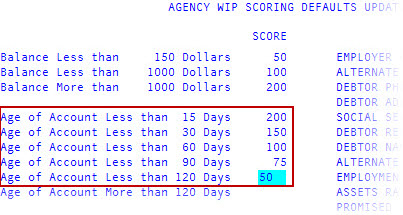
Remember to enter the ages in the Age of Account Less than fields in ascending order.
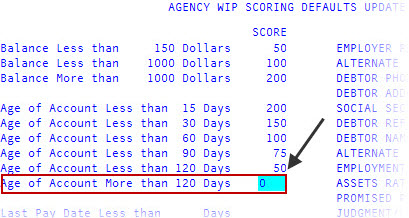
In the Age of Account More than field, The Collector System automatically enters the number from the last Age of Account Less than field.
-
In the Score field, type the score to assign to an account if its age is more than the number in the Age of Account More than field, and press Enter.
-
In the Last Pay Date Less than field, type the number of days after the last pay date (on the Account Update screen) to use for assigning a score to the account, and press Enter.
If your agency has not received a payment, the system compares the number of days after the last payment was received to the assign date.
- In the Score field, type the score to assign to an account when the number of days since the last pay date is less than the number in the Last Pay Date Less than field, and then press Enter.
-
In each field from the Employer Phone field through the Alternate Payer field, type a score to assign to an account if the record contains the item in these fields. Press Enter to move down the fields.
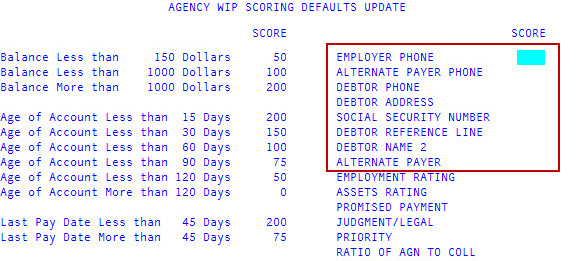
The following table gives the location where the system pulls information for the scoring criteria:
Scoring Criteria
Location
Employer Phone
Financial Profile record
Alternate Payer Phone
Financial Profile record
Account Phone
Account
Account Address
Account
Social Security Number
Account
Data Reference Line
Account
Account Name 2
Account
Alternate Payer
Financial Profile record
Employment Rating
Financial Profile record
Assets Rating
Financial Profile record
Promised Payment
Tickler line (5)
Judgment/Legal
Account (Jmt# or "L" Status)
Priority
Tickler Line (7)
Ratio of Agn to Coll
Account
Contact your Finvi Support representative to set up codes that explain the circumstances of an inaccessible phone number. Codes such as Disconnected, None, Nonpub, and Unlisted are entered at phone number prompts. Also, if the address is flagged as mail return (MR-), the system treats the account as having no address. The system does not assign a score if one of these codes is present during the Day-End WIP sorting and scoring.
-
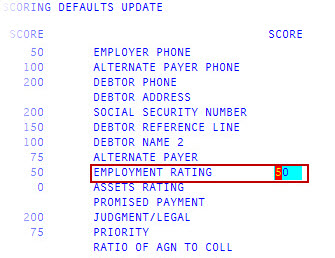
In the Employment Rating field, type the score to use to determine how much weight to give to the employment rating in the account's financial profile, and then press Enter.
The number in the following table corresponds to the account's rating, multiplied by the score you enter in the Employment Rating field. The result is the employment score.
Rating
Meaning
Multiplies
4
Unemployed
0
3
Low income
.33
2
Medium income
.67
1
High income
1.00
-
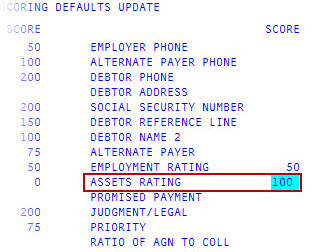
In the Assets Rating field, type the score to use to determine how much weight to give to the asset rating in the account's financial profile, and then press Enter.
The number in the following table corresponds to the account's rating, multiplied by the score you enter in the Assets Rating field. The result is the asset score.
Rating
Meaning
Multiplier
4
No assets
0
3
Low value
.33
2
Medium value
.67
1
High value
1.00
-
In the Promised Payment field through the Priority field, type a score to assign to an account if the record contains the item in these fields. Press Enter to move down the fields.
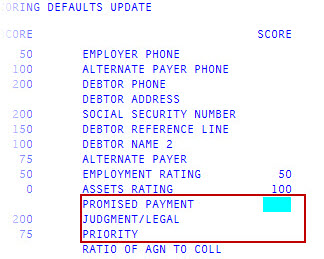
If an account is going through a judgment, the customer record will contain this information in attribute 54. If legal proceedings are associated with this account, attribute 23 of the customer record will contain an L.
-
In the Ratio of Agn To Coll field, type the score to use to determine how much weight to give an account's assigned amount to the collected amount ratio, and press Enter.
The system calculates the score by dividing the collected amount by the assigned amount, and multiplying the result by the number entered in the Ratio of Agn to Coll field. For example, if the assigned amount is $100, and the collected amount is $60, the number entered in this screen is multiplied by .60 to calculate the score.

- To save the changes, do one of the following:
- Press Enter after the Ratio of Agn To Coll field.
- Type # in any field, and press Enter.
- At the OK to File? (Y, N, /) prompt, do one of the following:
- To save your changes, type Y, and press Enter.
- To discard your changes and return to the Agency WIP Sorting Defaults Update screen, type N, and press Enter.
- To continue making changes to the Agency WIP Scoring Defaults Update screen, type /, and press Enter.