Configuring the account record to store settlement plan information
Before you begin, you must first create Fiscal file attributes to store the following:
- Settlement plan creation date
- Settlement plan approval date
- Settlement agreement sent date
- Settlement agreement return date
- Settlement agreement completion date
To add settlement plan information to an account record:
-
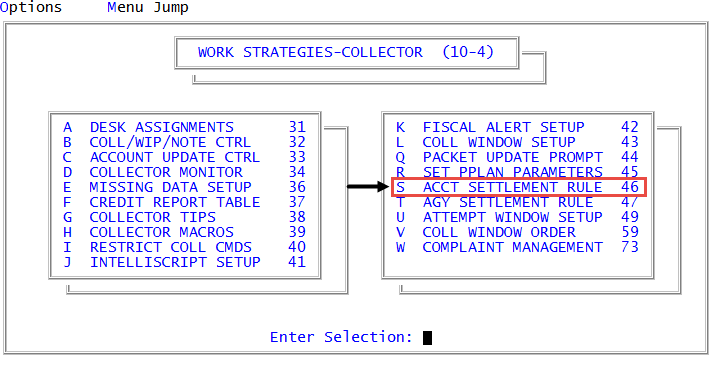
From the Master menu, navigate to
 Management Strategy > Collector > Acct Settlement Rule (menu 10.4.46).
 - In the Status code to change to when debtor is added to plan (?) window, do one of the following, and press Enter or click Ok:
- If you know the status code to use, type it.
- To choose from a list of status codes, type ?.
- In the Status Codes window, select the status code, and press Enter or click Ok.
-
In the Fiscal Attribute for Storing Settlement Creation Date window, type the appropriate Fiscal field attribute used to store the settlement plan creation date, and press Enter or click Ok.
This date is also stored in the settlement file and can be included in correspondence through a Fiscal @code.
-
In the Fiscal Attribute for Storing Settlement Approval Date window, type the appropriate Fiscal field attribute used to store the settlement approval date, and press Enter or click Ok.
This is the only place in the system where this date is stored. We recommend saving this date in a Fiscal attribute that is controlled through the Misc Setup Routine (menu 10.4.46). If the approval date field is null, then the system does not track it.
-
In the Fiscal Attribute for Storing Date Settlement Agreement Sent window, type the fiscal attribute used to store the date the agreement was sent, and press Enter or click Ok.
If you want your agency to send a settlement agreement, you can track the date your agency sent and received it in the system. Because you must send agreements manually, you must update the sent date in the system by using an @ code within the agreement at the time you generate it. For more information, see @Codes.
- In the Fiscal Attribute for Storing Date Settlement Agreement Returned window, type the fiscal attribute used to store the date the agreement was returned, and press Enter or click Ok.
-
In the Fiscal Attribute for Storing Settlement Completion Date window, type the appropriate Fiscal field attribute used to store the settlement completion date, and press Enter or click Ok.
This is the date that your agency representative signed the agreement. Someone in your agency must update this field when the agreement is complete.
- In the Number of days before delinquent window, type the number of days after a missed or partial payment that a settlement plan is considered delinquent, and press Enter or click Ok.
-
At the OK to File? (Y, N, /) prompt, do one of the following, and press Enter:
- To save your changes, type Y.
- To discard your changes, type N.
- To continue making changes, type /.
The system displays a message that the file has been updated.