Creating miscellaneous fields for credit reporting
To report multiple account types, store multiple creditor classifications, and exclude credit reporting agencies from the credit reporting process, you must create three corresponding miscellaneous fields, then you can create the credit reporting agency.
Before setting up your credit reporting agency, there are several tasks to complete, depending on how you want to configure the agency. For more information, see Taking credit reporting actions on an account.
To create a miscellaneous field for credit reporting:
-
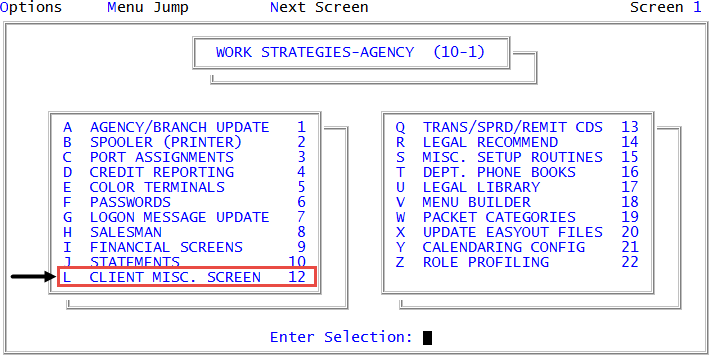
From the Master menu, navigate to
 Management Strategy > Agency > Client Misc. Screen (menu 10.1.12).
 - In the Client Misc Screen Update window, select Update Client Misc Screen, and press Enter or click Ok.
- In the Enter Field Number window, the next available field number displays; press Enter or click Ok.
-
Create one of the following fields:
Create the Account Type miscellaneous field
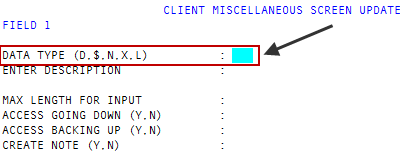
- In the Client Miscellaneous Screen Update screen, in the Data Type (D, $, N, X, L) field, type X, and press Enter.
- In the Enter Description field, type Act Type for the account type, and press Enter.
- In the remaining fields, press Enter to accept the default values for each field.
 Create a Creditor Classification field
- In the Client Miscellaneous Screen Update screen, in the Data Type (D, $, N, X, L) field, type X, and press Enter.
- In the Enter Description field, type Cred-Class, and press Enter.
- In the remaining fields, press Enter to accept the default values for each field.
Create an Omit field
- In the Client Miscellaneous Screen Update screen, in the Data Type (D, $, N, X, L) field, type X, and press Enter.
- In the Enter Description field, type Omit, and press Enter.
- In the remaining fields, press Enter to accept the default values for each field.
- In the Enter Field Number window, click Cancel.
- At the OK to file? prompt, press Enter or click Yes.
-
At the Print dictionary listing? prompt, click Yes.
The dictionary listing shows the linkage between the field number, attribute number, and the description for each. You will need this information when you enter the Creditor Classification, Omit, and Account Type attribute numbers, when creating the credit reporting agency later.
- At the Send information to printer? prompt, click Yes.
- At the OK to print? prompt, press Enter or click OK.
- To create the remaining miscellaneous fields, return to Step 1.