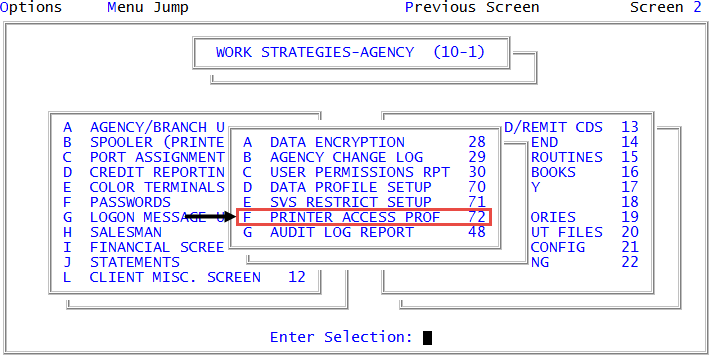
Creating or changing printer access profiles
Use this option to set the default printer parameters for your users.
To create or change a printer access profile:
-
From the Master menu, navigate to
 Management Strategy > Agency > Printer Access Prof (menu 10.1.72).
 - In the Printer Access Profile ID (?) window, do one of the following, and press Enter or click Ok:
To create a new printer access profile, type a name for the profile. Proceed to Step 4.
The name cannot exceed six characters.
- To update an existing profile, do one of the following:
- If you know the name of the profile to change, type it.
- To choose from a list of profiles, type ?.
- In the Printer Access Profile IDs window, select the profile to use, and press Enter or click Ok.
- At the Enter Option (U, /) prompt of the Printer Access Profiles screen, type U, and press Enter.
- In the Printer Access Profile Description window, type a description for the profile, and press Enter or click Ok.
- In the Printer Access Profile IDs window, select one or more printers to allow access to, and press Enter or click Ok.
- In the Select Default Printer window, select one of the printers to designate as the default printer, and press Enter or click Ok.
- At the Enter Option (U, /) prompt, type /, and press Enter.
- At the OK to File? (CR=Y, N) prompt, do one of the following:
- To save the profile, press Enter.
- To exit the screen without saving, type N, and press Enter.