Menu 10.5.56 - Contact Restrictions
Many states, and some local authorities, limit the frequency, number, and kind of contacts a collection agency can have with its accounts. If you are subject to such restrictions, use this option to keep accounts off WIPs and prevent them from receiving letters for a certain period. Collectors cannot access accounts in the Collector screen from the WIP if contact frequency limitations are not satisfied.
The establishment of these limitations is entirely up to the agency. Enter the restrictions according to information you obtain about the laws in each state or municipality.
Finvi has no responsibility for any contact restriction data used.
Create or change a restriction
- From the Master menu, navigate Management Strategy > Codes >
- In the window explaining that use of legal state restrictions is the responsibility of the client and not Finvi, click Yes to proceed.
- In the Enter Government Entity Code window, do one of the following to enter the code for a U.S. state or Canadian province, and press Enter or click Ok:
- If you know the code, type it.
- To choose from a list of entity codes, type ?.
- In the State/Provinces to Update window, select a state or province, and press Enter.
Certain cities in the U.S. have their own laws and regulations regarding contacting customers for collection purposes. You can designate these cities as No Contact in The Collector System. These cities include Chicago, Illinois and Buffalo, Yonkers, and New York City in New York State. This means you could set up The Collector System to allow collectors to contact customers in Illinois but set a restriction from contacting customers with a Chicago address.
-
In the *Gov't NM: field of the Update State/Province Legal Information screen, type the name of the state or province if one does not display, and press Enter.
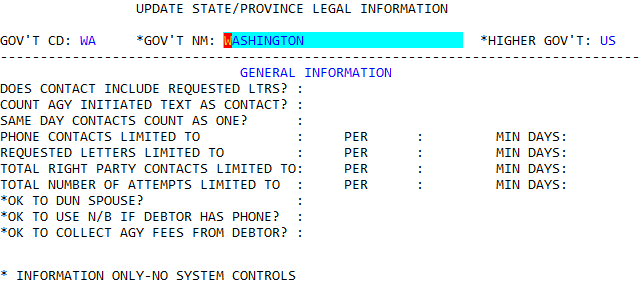
- In the Higher Gov't field, type the code for the country that the state or province belongs to, and press Enter.
- In the Does Contact Include Requested Ltrs? field, do one of the following, and press Enter:
- If this government defines a contact as either a phone call or a letter, type Y.
- If letters and calls are considered separate, type N.
- In the Count Agy Initiated Text As Contact field, do one of the following, and press Enter:
- To include agency initiated text messages as contact attempts, type Y.
- To not include agency initiated text messages as contact attempts, type N.
- In the Same Day Contacts Count As One? field, type Y if this government counts multiple contacts on the same date as one contact; otherwise, type N. Press Enter.
-
In the Phone Contacts Limited To field, type the maximum number of
- In the Per field, type one of the following time periods, and press Enter.
- For day, type D.
- For week, type W.
- For month, type M.
- For year, type Y.
-
In the Min Days field, type the minimum number of days that must pass before another phone call can be made, and press Enter.
This is calculated automatically, but users can override the calculated date in the Collector screen, if they have the correct permissions.
-
In the Requested Letters Limited To field, type the maximum number of pieces of correspondence allowed in a given time period, and press Enter.
If you enter zero in this field, you are still required to enter information in the Per field.
- In the Per field, type one of the following time periods, and press Enter.
- For day, type D.
- For week, type W.
- For month, type M.
- For year, type Y.
-
In the Min Days field, type the minimum number of days that must pass before more correspondence can be sent, and press Enter.
This is calculated automatically, but users can override the calculated date in the Collector screen, if they have the correct permissions.
- In the Total Related Party Contacts Limit field, type the maximum number of contacts (phone calls, letters, emails, and so on) allowed in a given time period, and press Enter.
- In the Per field, type one of the following time periods, and press Enter.
- For day, type D.
- For week, type W.
- For month, type M.
- For year, type Y.
-
In the Min Days field, type the minimum number of days that must pass before another phone call can be made, and press Enter.
This is calculated automatically, but users can override the calculated date in the Collector screen, if they have the correct permissions.
-
If you enter zero in this field, you are still required to enter information in the Per field.
- In the Per field, type one of the following time periods, and press Enter.
- For day, type D.
- For week, type W.
- For month, type M.
- For year, type Y.
-
In the Min Days field, type the minimum number of days that must pass before an account can be contacted again, and press Enter.
This is calculated automatically, but users can override the calculated date in the Collector screen, if they have the correct permissions.
The *OK to DUN Spouse field is for informational purposes only and cannot be updated.
The *OK To Use N/B If Debtor Has Phone field is for informational purposes only and cannot be updated.
N/B = Nearby
The *OK To Collect Agy Fees From Debtor field is for informational purposes only and cannot be updated.
-
At the OK to file Government Entity name, do one of the following:
- To save your changes, click Yes.
- To discard your changes and exit the Update State/Province Legal Information screen, click No.
- To continue making changes to the Update State/Province Legal Information screen, click Cancel.
Although The Collector System does not display a message, your changes are saved.
Fields ending with a (US) label on this help page are agency-wide settings which cannot be changed for individual states. These fields can only be accessed and updated when US is entered at the Enter Government Entity Code (?) prompt.