Menu 10.1.76 - Access Log
Use this report to monitor possible unauthorized activity by viewing the successful and unsuccessful logins by users to The Collector System.
To include successful logins on this report, you must set the Capture Successful Logons field to Y in the Password Control window.
- From the Master menu, navigate to Management Strategy > Agency Setup > Access Log (menu 10.1.76).
- In the Enter Master Password window, if your agency uses a master password, type it, and press Enter or click Ok.
- In the Password Update Routine window, select Access Log, and press Enter or click Ok.
- In the Starting date window, type the first date to include in the report using the MM-DD-YY format, and press Enter or click Ok.
- In the Ending Date window, type the last date to include in the report using the MM-DD-YY format, and press Enter or click Ok.
-
At the Select the output destination prompt, do one of the following:
-
To view the report on your screen, click View.
The report displays in a text file.
- To email the report, click Email.
- To send the report to the printer, click Print.
- In the Select Printer to Use window, select a printer, and press Enter or click Ok.
- To return to the Password Update Routine window, click Cancel.
-
Example Access Log report
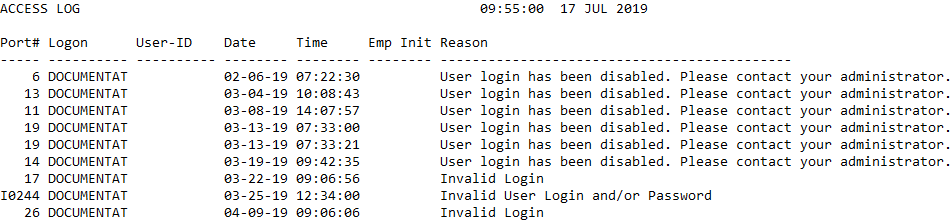
Access Log field descriptions
|
Field |
Description |
|
Port# |
The port number from which the user accessed the system. |
|
Logon |
The name of the logon the user logged on to. |
|
User-ID |
The ID used to log on to the system. |
|
Date |
The date the user accessed the system. |
|
Time |
The time the user accessed the system. |
|
Emp Init |
The user's initials. |
|
Reason |
A description of the result when the user attempted to access the system. |