Adding or editing SPA restrictions
The Collector System lets you configure restrictions to control how collectors can set up scheduled payments, such as minimum and maximum number of payments, minimum and maximum payment amounts, whether customers can make single payments, and so on.
You can set up broad or more specific restrictions based on different categories which are evaluated independently:
 Account restrictions (listed from broadest to most specific)
- Agency
- Business class
- Client
- Account
User restrictions (listed from broadest to most specific)
- Role profile
- User
Consumer restrictions
-
Consumer
The restriction levels have a hierarchy that The Collector System uses to evaluate how collectors can set up scheduled payments. The restrictions at the Agency level are the broadest and apply to all customers, regardless of business class, client, account, role profile, or user. The other restriction types, however, are specific to that level. For example, if you configure restrictions for a client, customers with accounts for that client will have to meet those requirements for a collector to set up a scheduled payment.
Consumer payment arrangements are only governed by Consumer restrictions and are not part of the hierarchy of Account or User SPA restrictions.
The Collector System determines the type of scheduled payment a collector can create by first evaluating whether restrictions apply at the User level, then the Role Profile level, then the Account level, and so on until the Agency level.
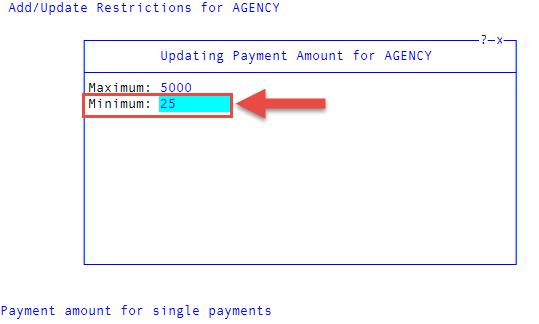
For example, a fictitious agency, Lake Assets, sets up an Agency level restriction that prevents collectors from setting up a scheduled payment for less than $25, shown as follows.
One of their clients, Orangeville Power Company, however, wants customers to make no less than a $50 payment, shown as follows.
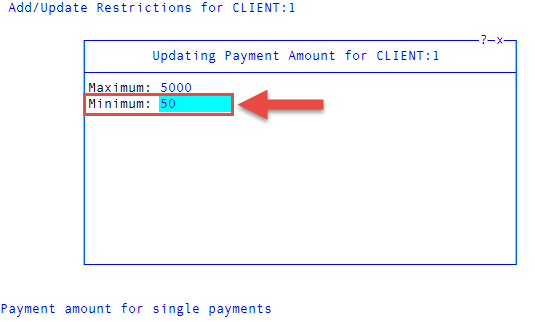
In this scenario, the Client restrictions would take precedence over the Agency restrictions, so The Collector System would not allow collectors to create scheduled payments for Orangeville Power Company accounts for less than $50.
You can also configure parameters for scheduled payment plans that settle an account or to pay off a portion of the amount owed. For Settled In Full plans, The Collector System considers the account settled after the last scheduled payment posts.
To add or edit SPA restrictions:
-
From the Master menu, navigate to
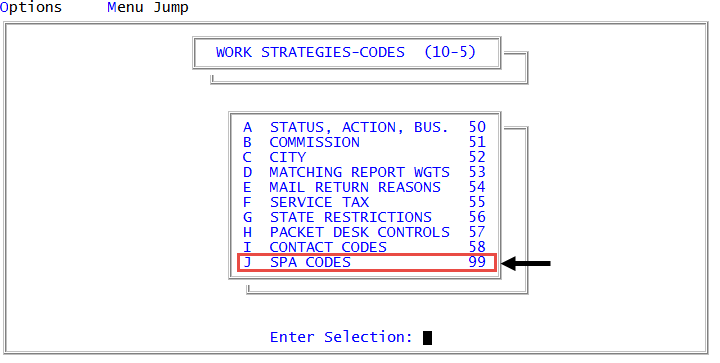
Management Strategy > Codes > SPA Codes (menu 10.5.99). - In the Schedule Payment Code Configuration window, select Update Restrictions, and press Enter or click Ok.
- In the Select Restrictions Level to Narrow Search Display window, select the type of restriction to add or edit, and press Enter or click Ok.
-
In the Restriction Update - Display Restricted To: "restriction type" Entries window, do one of the following, and press Enter or click Ok:
Add a restriction
Select <Add New>.
Copy a restriction
- Select <Copy Existing>.
- In the Select Restrictions to Copy From window, select a restriction, and press Enter or click Ok.
- In the Select New Restriction Level to Copy to window, select the new restriction level, and press Enter or click Ok.
Edit a restriction
Do one of the following, and press Enter or click Ok:
- To choose from a list of all restrictions, select <All>.
- To select the type of restriction to delete, select a type, such as Agency, Client, and so on.
- In the Restriction Update window, select the restriction to edit, and press Enter or click Ok.
-
In the Add/Update Restrictions window, do one of the following:
For Agency restrictions
Proceed to Step 6.
For Business Class restrictions
In the Select Business Class window, select the business class, and press Enter or click Ok.
For Client restrictions
In the Enter Client Number window, do one of the following, and press Enter or click Ok.
- If you know the client number, type it.
- To choose from a list of clients, type ?.
- In the Select Client screen, select a client, and press Enter or click Ok.
For Account restrictions
In the Enter Debtor Number window, type the account number, and press Enter or click Ok.
For Role Profile restrictions
In the Select Role Profile window, select a role profile, and press Enter or click Ok.
For User restrictions
In the Select User window, select a user, and press Enter or click Ok.
For Consumer restrictions
Proceed to Step 6.
-
Enter the details for one or more of the following restrictions:
After you enter information for a restriction, an asterisk displays in the D (Data Present) column next to the restriction in the Add/Update Restrictions window.
Number of payments
Use this option to specify the number of payments to allow when setting up scheduled payments.
- In the Maximum field, type the maximum number of payments allowed, and press Enter.
- In the Minimum field, type the minimum number payments allowed, and press Enter.
Interval Days
Use this option specify the number of days allowed between scheduled payments.
- In the Maximum field, type the maximum number of days allowed, and press Enter.
- In the Minimum field, type the minimum number of days allowed, and press Enter.
Duration
Use this option to specify the number of days a scheduled payment plan can last.
- In the Maximum field, type the maximum number of days allowed, and press Enter.
- In the Minimum field, type the minimum number days allowed, and press Enter.
Payment Amount
Use this option to specify the amounts allowed for a single payment.
- In the Maximum field, type the maximum amount allowed, and press Enter.
- In the Minimum field, type the minimum amount allowed, and press Enter.
Total Amount
Use this option to specify the total amount a customer can pay off using a scheduled payment plan. This may be less than the actual amount owed on the account. This amount applies to both settled-in-full and partial payoff plans. To configure different amounts for settled-in-full and partial payoff plans, then leave this field blank and add the appropriate amounts in the SIF Percent and Partial Percent fields.
- In the Maximum field, type the maximum amount allowed, and press Enter.
- In the Minimum field, type the minimum amount allowed, and press Enter.
Total Percent
Use this option to specify a percentage of the assigned amount that a customer can pay off using scheduled payments. This percentage applies to both settled-in-full and partial payoff plans. To configure different percentage amounts for settled-in-full and partial payoff plans, then leave this field blank and add the appropriate percentage in the SIF Percent and Partial Percent fields.
In the Minimum field, type the minimum payment amount allowed, and press Enter.
First Date
Use this option to set the number of days from the current date to schedule the first scheduled payment.
- In the Maximum field, type the maximum number of days from the current date to schedule the first payment, and press Enter.
- In the Minimum field, type the minimum number of days from the current date to schedule the first payment, and press Enter.
SIF Amount
Use this option to specify an amount of the assigned amount your agency will accept to settle an account.
In the Minimum field, type the minimum amount allowed, and press Enter.
SIF Percent
Use this option to specify a percentage of the assigned amount that your agency will accept to settle the account.
In the Minimum field, type the minimum percentage allowed, and press Enter.
Partial Amount
Use this option to specify a partial amount of the assigned amount that your agency will allow to set up for scheduled payments. For example, if a customer owes $2,500 and you enter $1,500, the collector can only schedule payments that pay off $1,500 or more of the $2,500 balance.
In the Minimum field, type the minimum amount allowed, and press Enter.
Partial Percent
Use this option to specify a partial percentage of the assigned amount that your agency will allow to set up for scheduled payments. For example, if a customer owes $1,000 and you enter 50%, the collector can only schedule payments that pay off at least 50% of the balance. In this case, the scheduled payments would need to meet or exceed $500.
In the Minimum field, type the minimum percentage allowed, and press Enter.
Single Payment Amount
Use this option to specify the amount allowed for a single payment.
- In the Maximum field, type the maximum amount, and press Enter.
- In the Minimum field, type the minimum amount, and press Enter.
Single Number Payments
Use this option to specify the maximum number of single payments your agency will allow.
In the Maximum field, type the number, and press Enter.
Allow Single Payments
Use this option to specify whether to allow single payments.
- In the Y/N field, do one of the following, and press Enter:
- To allow single payments, type Y.
- To not allow single payments, type N.
Restricted Payment Types
Use this option to specify the payment types your agency will not accept for scheduled payments.
Payment type restrictions that apply to any member of a packeted SPA are also applicable to the other members of the SPA.
In the Restricted window, select one or more payment types, and press Enter or click Ok.
Restricted Plan Types
In the Default window, select to restrict SIF or Partial SPAs, and press Enter or click Ok.
Forgive Payments Limit
In the Default window, input the maximum number of times a Consumer can cancel scheduled payments, and press Enter or click Ok.
Forgive Payments Days
In the Default window, input the minimum number of days a consumer can cancel a payment prior to a scheduled payment date, and press Enter or click Ok.
- In the Add/Update Restrictions window, click Cancel.