Reporting disputes as resolved
When a dispute is resolved, you must report it to the credit reporting agency as resolved.
To report disputes as resolved:
-
From the Master menu, navigate to Utility > Credit Reporting (menu 9.4).
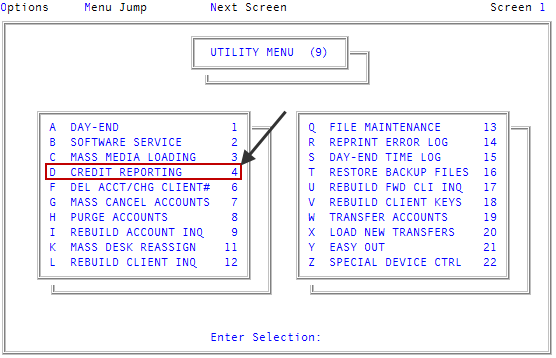
- In the Credit Reporting window, select Take Action on Account, and press Enter or click Ok.
- In the Enter Debtor Number(s) Separated by a Semicolon window, do one of the following, and press Enter or click Ok:
- Type one or more account numbers, separating each with a semicolon.
- Type a Get-List or Select statement. For more information, Working with Recall.
- In the Credit Reporting Actions window, select Report Dispute is Resolved, and press Enter or click Ok.
-
In the Dispute Resolutions - Compliance Condition Code window, select a code, and press Enter or click Ok.
The following table lists six codes to choose from:
Code
Description
XA
The consumer requests to close the account.
XC
The consumer agrees with the results of an investigation into the Fair Credit Reporting Act.
XE
The consumer requests to close the account, the investigation is complete, and the consumer disagrees with the results of the investigation.
XG
The consumer disagrees with the resolution of the dispute related to the Fair Credit Billing Act.
XH
The data provider reports that the account formerly in dispute is now resolved.
XR
The data provider reports that the account formerly in dispute is now resolved.
- In the Enter New Status Code (?) window, type a status code, and press Enter or click Ok.
- If you don't know the status code, to see a list, type ?, and press Enter.
-
At the Ok to change? prompt, to change the status code, click Yes.
This prompt only displays if you changed the status code in Step 6.
- At the Ok To Proceed? (Y/CR=N) prompt, type Y, and press Enter.
-
At the Account number not yet reported as disputed this month. Dispute request removed for debtor number prompt, click Ok.
This prompt only displays if you did not report the account number as disputed during the current month.
- At the Action accepted for debtor number prompt, click Ok.
- At the Enter Debtor Number(s) Separated by a Semicolon window:
- To quit, click Cancel.
- To report another dispute as resolved for another account, return to Step 4.