Adding, inserting, or changing status codes to indicate an account is forwarded
When designating a new status code as "forwarded", unless you specify a specific location to insert a status code in the list, the system alphabetizes the codes in the list. In order to insert a status code at a specific place in a list, you need to know the line number at which to insert it.
We recommend that you print or view a list of status codes designated as "forward" before adding to or changing the list. For more information, see Printing a list of the current action codes or Displaying a list of status codes that indicate an account is forwarded.
To add, insert, or change forward status codes:
-
From the Master menu, navigate to
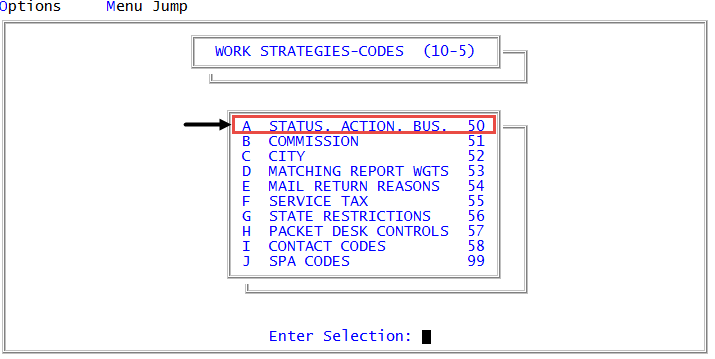
 Management Strategy > Codes > Status, Action, Bus (menu 10.5.50).
 - In the Status/Action Code Descriptions window, select Update Codes, and press Enter or click Ok.
- In the Codes File Update/List window, select Status Codes to Designate as 'Forward', and press Enter or click Ok.
- In the Status Code Update window, select one of the following, and press Enter or click Ok.
- To designate a status code as a forward status code, select Add. Proceed to Step 8.
- To designate a status code as a forward status code and place it at a specific place in the forward status code list, select Insert. Proceed to Step 7.
- To replace a forward status code with another status code, select Change.
-
In the Enter Number to be Changed (?) window, type the line number of the status code to change press Enter or click Ok.
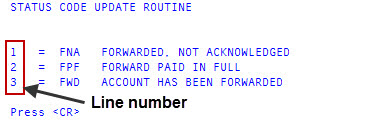
The line number is the line on the screen at which the status code is stored. To view a list of status codes, including the line number, type ?, and press Enter or click Ok. After viewing the list, press Enter. Return to Step 4.
- At the status code description - Change? prompt, click Yes. Proceed to Step 8.
-
If you are inserting a status code, in the Enter Number After Which to Insert (?) window, type the line number, and press Enter or click Ok.
The line number is the line on the screen at which the status code is stored. To view a list of status codes, including the line number, type ?, and press Enter or click Ok. After viewing the list, press Enter. Return to Step 4.
-
In the Enter New Code (?) window, type the status code, and press Enter or click Ok. The code can be a maximum of three characters.
To select from a list of status codes, type ?, and press Enter or click Ok. Select a status code in the Status Codes window, and press Enter or click Ok.