Creating or changing user settlement rules
After you create a new user settlement rule, you need to assign it to one or several role profiles.
If you update a settlement rule, the system automatically updates any role profiles that use this rule. The system applies rule changes to any new settlements going forward from the date the rule changes you made in the system.
After you create a user settlement rule, you cannot delete it.
Collectors can create settlements for individual accounts. If a customer has multiple accounts packeted together, the collector must create a separate settlement plan for each account. Collectors can select from the list of packeted accounts on an account-by-account basis when creating settlement plans for packeted accounts.
To create or change a user settlement rule:
-
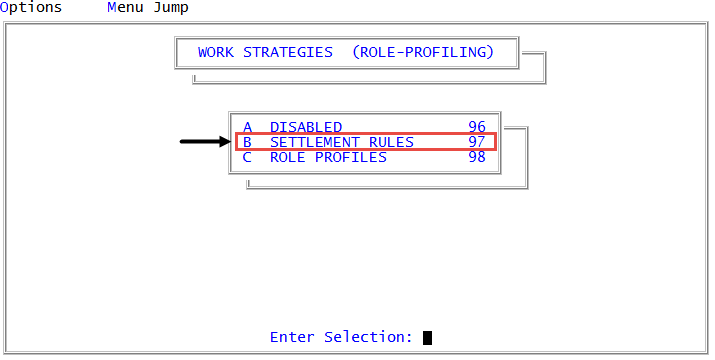
From the Master menu, navigate to
 Management Strategy > Agency > Role Profiling > Settlement Rules (menu 10.1.22.97).
 - In the Enter Master Password window, type the master password, and press Enter or click Ok.
- In the Setup for Settlement Rules window, type the name of the settlement rule, and press Enter or click Ok.
-
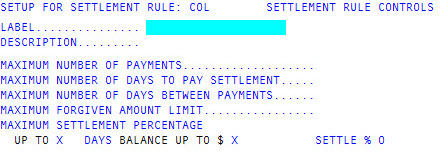
In the Label field of the Settlement Rule Controls screen, type the label to give the user settlement rule, and press Enter.
When deciding on a label name, consider creating one that best describes the type of user that this settlement will apply to, such as Floor Manager or Collector 1. This field has a 20 character limit.
-
In the Description field, type a description for this settlement rule, and press Enter.
This field has a 45-character limit.
- In the Maximum Number of Payments field, type the maximum number of payments a settlement plan can have, and press Enter.
- In the Maximum Number of Days to Pay Settlement field, type the maximum number of days by which a settlement plan must be paid, and press Enter.
- In the Maximum Number of Days Between Payment field, type the maximum number of days between payments for the settlement plan, and press Enter.
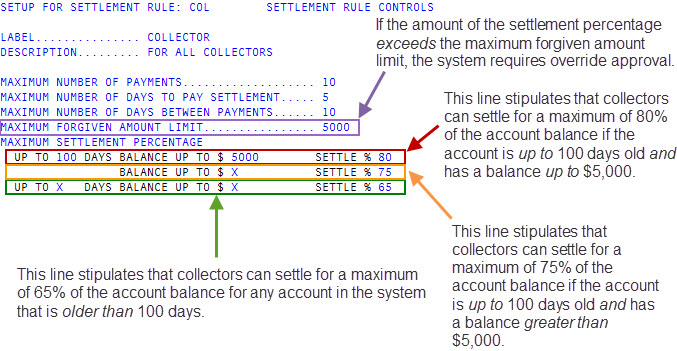
- In the Maximum Forgiven Amount Limit field, type the maximum amount that a user can forgive on a debt, and press Enter.
- In the Maximum Settlement Percentage field, do the following:
- In the Up to X days field, type the number of days in which the settlement plan must be fulfilled, and press Enter.
- In the Balance up to X field, type the maximum dollar amount for which a settlement can be created, and press Enter.
- In the Settle % field, type the percentage amount for which a settlement can be created for an account, and press Enter.
-
At the OK to File? (Y, N, /) prompt, do one of the following, and press Enter:
- To save your changes, type Y.
- To discard your changes, type N.
- To continue making changes, type /.
After you save the rule, the system displays a message that the record is filed.
To continue configuring or updating settlement rules, do one of the following, depending on how you plan on using settlement plans at your agency:
- To configure client settlement rules, see Creating or changing client settlement rules.
- To configure account settlement rules, see Configuring the account record to store settlement plan information.
- To configure agency settlement rules, see Creating or changing agency settlement rules.
If you have completed creating settlement rules, assign it to a role profile. For more information, see Role profile settlement rules. If you are updating the settlement rule, The Collector System automatically updates the role profiles.