Deleting branches
If you no longer need a branch, you can remove it from the system. All items assigned to the deleted branch revert back to the main agency logon.
To delete a branch:
-
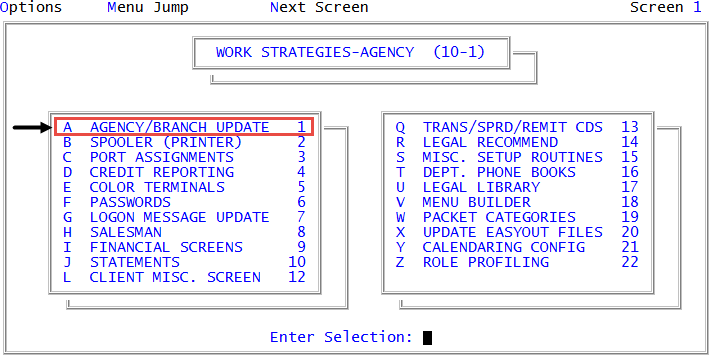
From the Master menu, navigate to
 Management Strategy > Agency > Agency/Branch Update (menu 10.1.1).
 - In the Agency/Branch Update window, select Update Branch Offices, and press Enter or click Ok.
- In the Enter Branch/Logon ID window, type the logon ID of the branch to delete, and press Enter or click Ok. To view a list of branch IDs, see Viewing branches.
- Type /DEL in any field on the Branch Update screen (except Branches to Access), and press Enter.
-
At the Delete prompt, click Yes.
A message confirming the deletion displays at the bottom of the screen.