Removing a branch's access to other branches
Use this option when you no longer want a branch to have access to other branches.
To removing a branch's access to other branches:
-
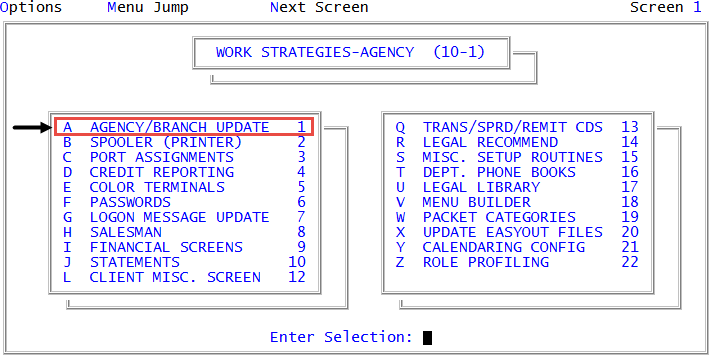
From the Master menu, navigate to
 Management Strategy > Agency > Agency/Branch Update (menu 10.1.1).
 - In the Agency/Branch Update window, select Update Branch Offices and press Enter or click Ok.
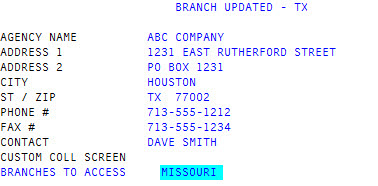
- In the Enter Branch/Logon ID window, type the ID of the branch to update and press Enter or click Ok to display the Branch Updated - Branch/Logon ID screen. To view a list of branch IDs, see Viewing branches.
-
Press Enter to navigate to the Branches To Access field and delete the branch name and press Enter.
Remove multiple branch names by deleting each and pressing Enter.
- To exit the screen, type # in any field, and press Enter.
-
At the OK to File? prompt, do one of the following:
- To save the branch record and return to the Agency/Branch Update window, press Enter.
- To discard the branch record and return to the Agency/Branch Update window, type N, and press Enter.
- To go back and make changes to the current screen, type /, and press Enter.
After you save your changes, the screen displays the message that your changes saved.