Assigning role profiles to users
After you finish configuring role profiles, you assign one to each user. In the system, role profiles become associated with a user login, thus determining what the user can access.
You must create role profiles before you assign them to a user. For more information, see Creating and changing role profiles.
To assign a role profile to a user:
- From the Master menu, navigate to Management Strategy > Agency> Passwords (menu 10.1.6).
- In the Enter Master Password window, type the master password, and press Enter or click Ok.
-
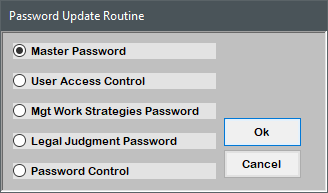
In the Password Update Routine window, select User Access Control, and press Enter or click Ok.
-
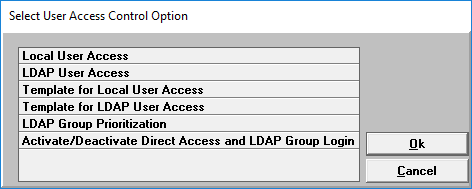
In the Select User Access Control Option window, select Local User Access, and press Enter or click Ok.
- In the Enter User Login window, do one of the following, and press Enter or click Ok:
- If you know the user login, type it.
- To choose from a list of user logins, do the following:
- In the Enter User Login window, type ?, and press Enter or click Ok.
- In the list of user logins, press Enter to scroll through the pages of user logins and names until you find the one you are looking for.
- Continue to press Enter until the Enter User Login window displays again.
- At the Enter Option prompt of the User Login screen, type U2, and press Enter.
-
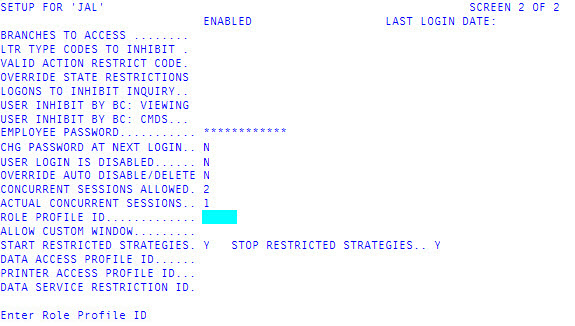
In the Role Profile ID field, type the role profile ID to attach to this user, and press Enter.
- To exit the screen, type # in any field, and press Enter.
- In the Setup for user login () Master Menu window, click Cancel.