Changing your color scheme
You can change your color scheme to any of the color schemes listed in the system. If you do not know the number of the color scheme you want to use, you can view a list of all the available schemes. For more information, see Viewing a list of available color schemes.
Using and changing color schemes only works on "dumb" terminals, which are computers that are limited to text-only capabilities. If you use CU·Emulate, see your CU·Emulate manual to change screen colors.
To change your color scheme:
-
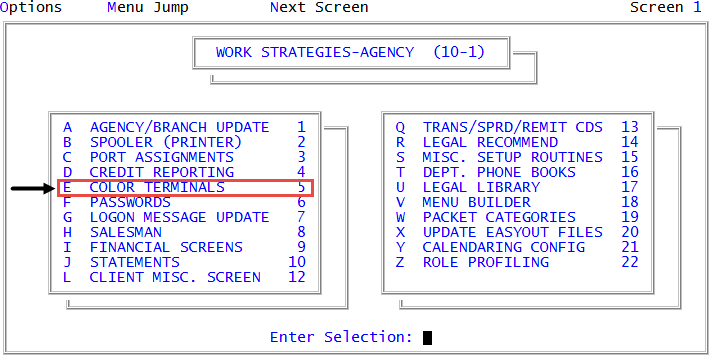
From the Master menu, navigate to
 Management Strategy > Agency > Color Terminals (menu 10.1.5).
 - In the Enter Port to Change, type the port number to change, and press Enter or click Ok.
- In the Color Terminal Options window, select Use An Existing Color Scheme, and press Enter or click Ok.
-
In the Enter Number of Color Scheme window, type the number for the color scheme to use, and press Enter or click Ok.
To view a list of available color schemes, see Viewing a list of available color schemes.
- At the "Color Scheme Name" - Ok? prompt, click Yes.