Configuring account sorting for standard WIPs
In the Collector Strategy menu, you can configure the parameters the system uses to search, filter, and organizes accounts to create a standard WIP.
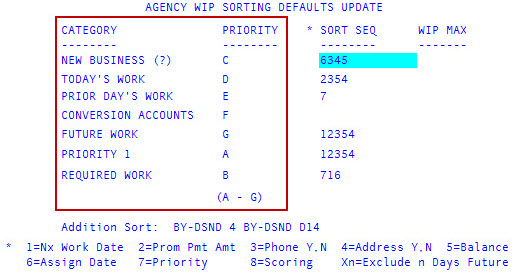
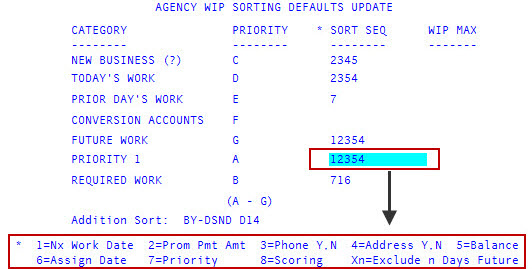
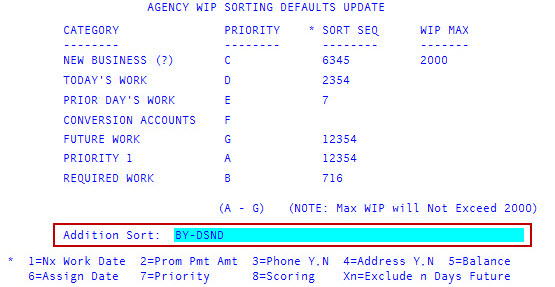
The following screen shows an example of the sorting parameters used to create a standard WIP. This same criteria is also used to organize any sub-WIPs you create from the standard WIP.
This screen is read from left to right with the sorting parameters organized into categories.
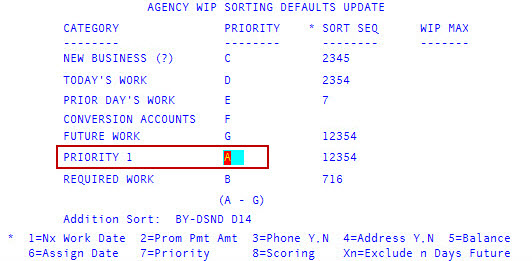
In this example, the Priority 1 category has a priority of A, meaning that The Collector System pulls any account with a 1 in the Tickler Followup Priority field first. After the system pulls the Priority 1 accounts, the system organizes them by the parameters in the Sort Sequence column.
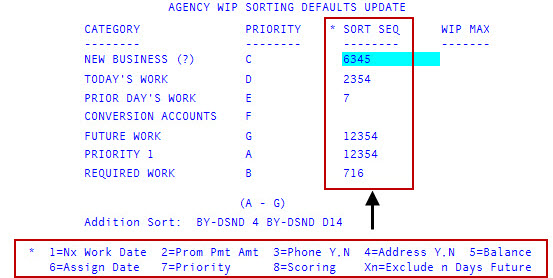
As seen in the following screen, each number in the Sort Sequence column corresponds to a different set of sorting categories located at the bottom of the screen. In the case of the Priority 1 accounts, the sort sequence is 12354. This means the system organizes the Priority 1 accounts by the next work date (1), then accounts with promised payments (2), then by accounts with telephones (3), then accounts with balances owing organized from largest to smallest (5), and finally those accounts with addresses (4). This process continues for each category starting with the priority A category through the priority G category.
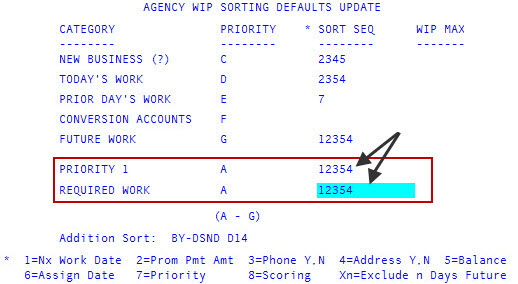
Multiple categories can also have the same priority. For example, in the following screen, the Priority 1 and Required Work categories are both a priority A. In this case, this ensures that a large number of Priority 1 accounts set by collectors does not interfere with contractual agreements, and vice versa. When categories share a priority, the system links the Sort Sequence and WIP Maximum values.
You cannot use Sort Sequence 8 (Sorting) with other Sort Sequence numbers. If you enter 8, the system removes any other numbers you added in that row and automatically displays the Agency WIP Scoring Defaults Update screen.
To ignore any category when sorting accounts, leave the Priority column blank for that line.
To configure account sorting for standard WIPs:
-
From the Master menu, navigate to
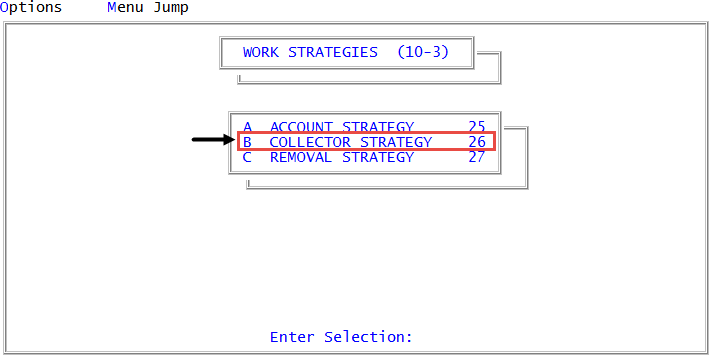
 Management Strategy > Work Strategies > Collector Strategy (menu 10.3.26).
When configuring standard WIPs for collector desks working legal accounts, you can also access the same WIP controls from Legal > Setup > Collector Strategy (menu 13.1.1).
-
In the Enter Collector Number window, do one of the following:
For the agency's standard WIP
Press Enter or click Ok.
For a collector desk's standard WIP
- Do one of the following, and press Enter or click Ok:
- If you know the collector desk number, type it.
- To choose from a list of collector desk numbers, type ?.
- In the Select Desk to Update window, select the desk number, and press Enter or click Ok.
-
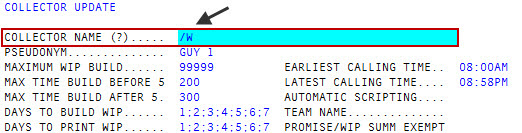
In the Collector Name field of the Collector Update screen, type /W, and press Enter.
- Do one of the following, and press Enter or click Ok:
-
In the Priority field for each Category of the
agency/desk WIP Sorting Defaults Update screen, type a letter between A and G (A being the highest) to designate the order in which each category is placed on a WIP. To navigate through the columns to go to the next row, press Enter. -
In the
Sort Seq field for each Category, type the number(s) in order of priority for the corresponding criterion (from the table below) for sorting records, and press Enter.You can use two or more sorting methods for a single category.
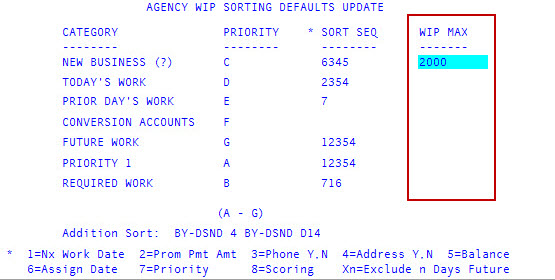
- In the WIP Max field for each Category, do one of the following:
To set the maximum number of items to display on a WIP for each category, type the number, and press Enter.
You can set each of the seven categories of the WIP to the maximum number of accounts allowed on a WIP for a desk. For example, if the desk maximum is 2000, you can make each category 2000. To fill the entire WIP when the system builds it, enter the maximum in the WIP Max field for each category (in this case, 2000) and, when the system builds the WIP, it has the potential to fill up the entire WIP.
- To use the default of 500 items on a WIP for each category, leave the field blank, and press Enter.
To allow an unlimited number of items for each category, type 0, and press Enter.
Custom programs that transfer the data to an automatic telephone dialing program use this option. If you set this field to 0, the system does not build a WIP.
-
If you need to add additional sorting criteria to the WIP, in the Addition Sort field, type a Recall sorting statement, and press Enter.
Follow these rules when using Recall statements in this field:
- Precede each sort statement with a sort modifier such as BY for ascending order (from zero to 9 and from A to Z) or BY-DSND for descending order (from 9 to zero and from Z to A).
- Enter the attribute used to sort the item immediately following the sort modifier. You can enter any dictionary item (name or number). If you use an attribute number, you must precede it with the initial representing the file name. For example, D2 for Debtor file attribute number 2 or C3 for client file attribute number 3.
For more information, see Working with Recall.
- At the OK to File? (Y, N, /) prompt, do one of the following:
- To save your changes, type Y, and press Enter.
- To discard your changes and return to the Enter Collector Number window, type N, and press Enter.
- To continue making changes to this screen, type /, and press Enter.