Creating or changing city codes
Use this option to manually create or update city codes to meet your unique business needs.
Before you perform this task, we recommend that you review all your current city codes to prevent duplication. For more information, see Printing a list of the current city codes.
If your agency uses CU·Codes, you receive a file you use to automatically add and/or update all of the latest city codes to The Collector System at once. (The file will not, however, update zip codes you have configured with unique IDs. For example, if you assign the code "PDX" to 97002, the CU·Codes file will not update 97002.) After you update The Collector System with the information from the CU·Codes file, you can use the steps in this procedure to update the city codes, if necessary. For more information about CU·Codes, contact your Finvi Support representative.
To create or change city codes:
- From the Master menu, navigate to Management Strategy > Codes > City (menu 10.5.52).
- In the City Codes Update Routine window, select Update/Add City Codes, and press Enter or click Ok.
-
In the City Code field of the City Codes Update screen, type the city code to add or update, and press Enter or click Ok.
Because zip codes are often used as city codes, whatever is entered in the City Code field is also automatically entered in the Zip field. You can change the entry, if necessary.
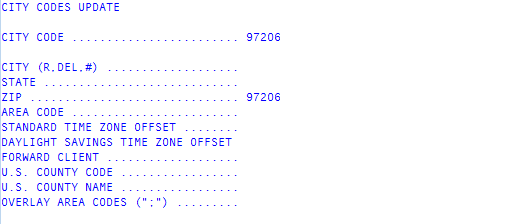
- In the City field, do one of the following, and press Enter:
- Type the name of the city.
- To repeat the last-entered city and state, type R. Proceed to Step 6.
-
In the State field, type the two-character state or province code used by the post office, and press Enter.
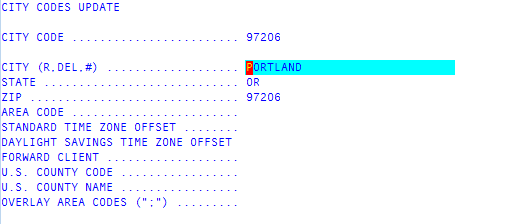
- In the Zip field, do one of the following:
- If the entry is correct, press Enter.
If the entry is incorrect, type the zip code associated with this city code, and press Enter.
If you enter a Canadian postal code containing letters and numbers, the system displays this prompt: ZIP Is Not 5 Or 9 Digits, Accept Anyway. Press Enter, or click Yes, to accept.
-
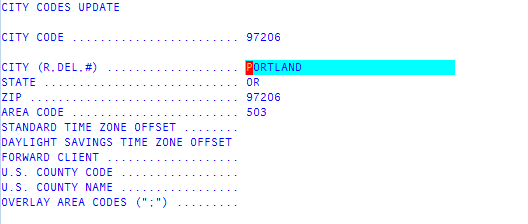
In the Area Code field, type the area code used in this zip code, and press Enter.
Automatic area code updates can be made when the phone number or zip code is changed. The automatic area code update feature is optional. Contact your Finvi Support representative for more information about automatic City File updates.
-
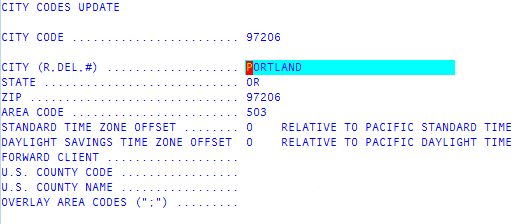
In the Standard Time Zone Offset field, type the difference in hours between the time zone of the city this city code represents and your time zone, and press Enter.
Type the number as a positive to add time or a negative number to subtract time from the standard time in your time zone. For example, if your office is located in the Pacific time zone and the city code is located in the Mountain time zone, you would type 1 since that city code is in a time zone one hour ahead of your office. Conversely, if your office is located in the Eastern time zone and the city code is located in the Pacific time zone, you would type -3 because the city code is three hours behind your office.
It is important to configure the city code time zones correctly since this information determines if a collector can work an account based on their Work to Time setting in the Collector setup.
-
In the Daylight Savings Time Zone Offset, type the difference in hours between the time zone of the city this city code represents and your time zone during daylight saving time, and press Enter.
Type the number as a positive to add time or a negative number to subtract time during daylight savings in your time zone. Remember to compensate for states that do not observe daylight saving time.
It is important to configure the city code time zones correctly since this information determines if a collector can work an account based on their Work to Time setting in the Collector setup.
- In the Forward Client field, type the number of the forward client to use if the account moves to this city code area, and press Enter.
- The U.S. County Code field is typically auto-populated when the system is installed, but if you need to update the field and you know the county code, type the code, and press Enter.
-
The U.S. County Name field is typically auto-populated when the system is installed, but if you need to update the field, type the name, and press Enter.
In the Overlay Area Codes field, type one or more area codes for this zip code, separating each with a semicolon, and press Enter.
- Type #, and press Enter to save the city code. It saves automatically without any prompts.