Updating the stair step History report
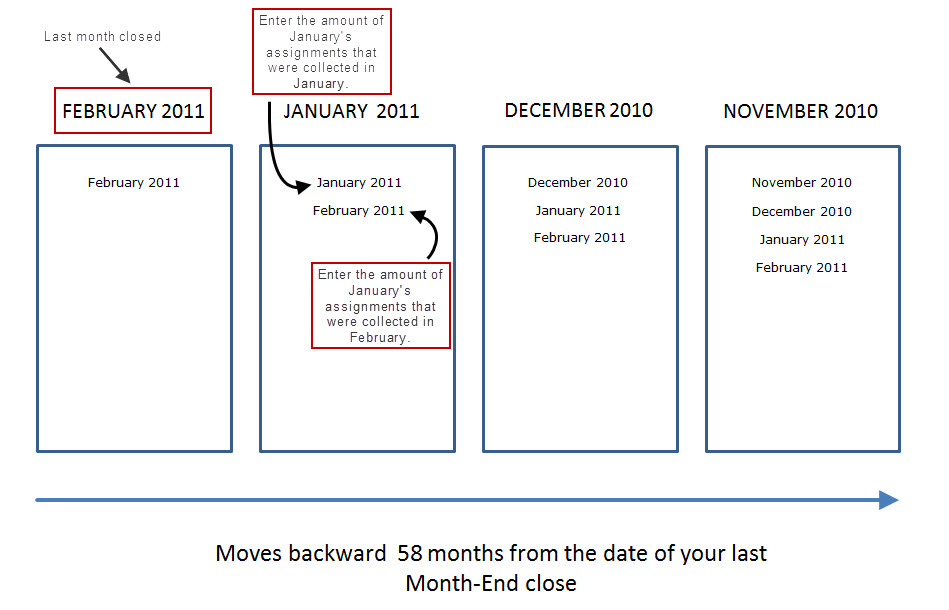
The stair step History report includes 58 months of information, so there are 58 screens, each of which can hold up to 12 months of data. The first screen that displays is the last month your agency ran a Month-End; it only holds one month of data. As you move backward through the 58 months of history, an additional month field displays, up to 12 months. After you reach 12 months back from the date of your last Month-End close, there are 12 month fields to complete on each screen.
You must first set up the regular history record for the client before you can set up the stair step history. For more information, see Updating the regular History report.
To update the stair step History report:
-
From the Master menu, navigate to
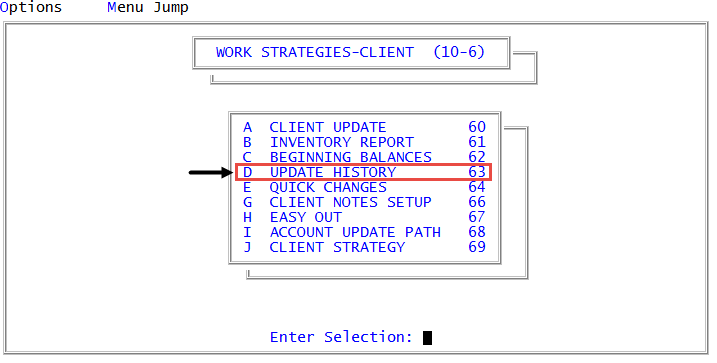
 Management Strategy > Client > Update History (menu 10.6.63).
 - In the History Report Setup window, select Stair Step History Records, and press Enter or click Ok.
-
In the Client# field of the Update Stair Step History screen, type the code your agency uses to identify this client, and press Enter.
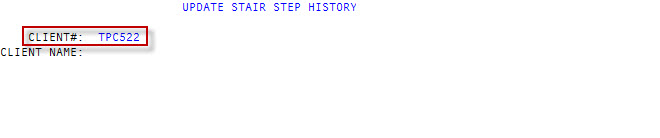
The system automatically fills the Client Name after you enter the client number.
- The first of the 58 months to display is the last month your agency closed. To navigate the screens, do the following:
- To move from field to field, press Enter.
- To move from one screen to another, do one of the following:
- Enter data in all the fields on the screen.
- Enter # in any field. At the OK to File (Y, N, Sn, /) prompt, type Sn, where n is the number of thenext screen to enter historical information in, and press Enter.
-
In the 1 MO field, type the amount collected on the named month's assignments in the first month they were placed, and press Enter. For example, on this screen the named month is December 2010.
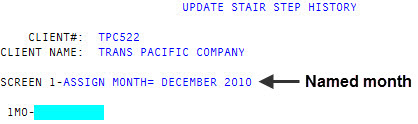
- In the 1 MO field on the next screen, type the amount of the named month's assignments collected during the first month they were placed, and press Enter.
-
In the 2 MO field, type the amount of the named month's assignments that were collected in the month after assignment, and press Enter. In this example, you would enter the dollar amount of November's assignments that were collected in December.
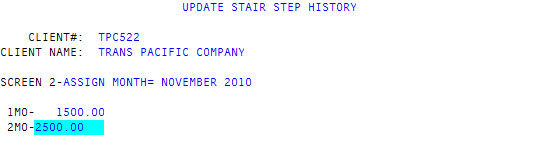
- Repeat the process for each month that displays.