Displaying the Judgment window
When your agency takes legal action against an account, the court may award a judgment. A judgment is a ruling by a court of law that specifies whether a customer owes money to a creditor or collection agency, how much they owe, and the payment terms. A judgment allows other legal measures, such as garnishment and liens, to be used in the collection of the debt. After the court issues a judgment, your agency enters it into The Collector System.
Because a judgment is a result of legal action, use extreme caution when working the account. Make sure you know the collection laws and your agency's policies before working an account with a judgment.
Use command WJ to view the details about a judgment such as the effective date, interest, and amount from the Judgment window. You can only view information in the Judgment window; you cannot update information.
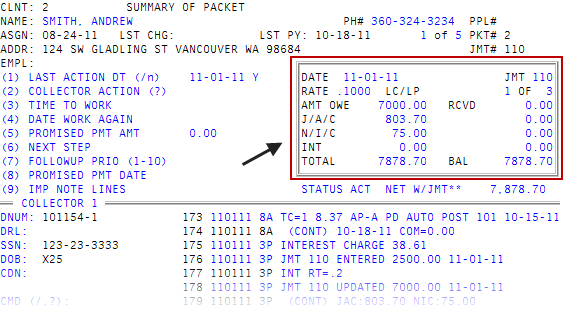
 Field descriptions
|
Field |
Description |
|
Date |
The date of the judgment. |
|
Jmt |
The number assigned to the judgment by the court or your agency. |
|
Rate |
The interest rate your agency charges to this judgment. |
|
Lc/Lp |
The date of the last charge or payment on this judgment. |
|
N of N |
The number of accounts on this judgment. |
|
Amt Owe |
The amount owed by the customer as dictated by the judgment. |
|
Rcvd |
The amount received by the agency for the judgment. |
|
J/A/C |
Additional fees, including any additional interest, owed and received for the judgment. |
|
N/I/C |
Additional fees in which interest cannot be charged for the judgment. |
|
Int |
The amount of interest that has accrued on the judgment. |
|
Total |
The total of the Amt Owe fields for the judgment. |
|
Bal |
The total of the Rcvd fields for the judgment. |
To display the Judgment window:
- Open an account in the Collector screen.
- At the Warning!! Legal Action has been Taken on This Account. Press <CR> prompt, press Enter.
- At the CMD (/, ?) prompt, type WJ, and press Enter.
-
At the Enter Legal Password prompt, type the legal password, and press Enter.
The Judgment window displays in the upper-right corner of the Collector screen.
- At the CMD (/, ?) prompt, to return to the Collector screen, type WX, and press Enter.