Prioritizing the contact sequence for an account
Use command PRI to prioritize all the contact fields of a specific type.
For example, a collector at a fictitious agency, Lake Assets, learns that it is easier to reach the customer for account 100025 at their employer phone number first. Instead of simply trying to remember this information or writing a note in the account, the collector can set the Emp1 Phn with a priority 1 so that it is the first number displayed to call. The collector can then set the Home Phn with a priority 2 so that it is the second number displayed to call.
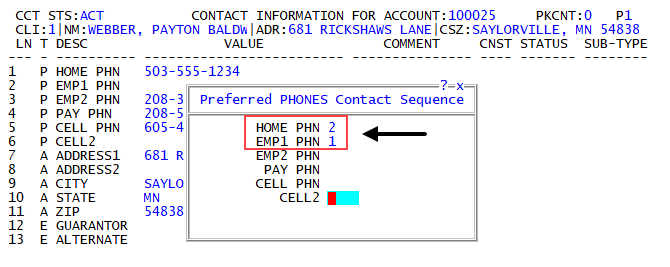
For those fields not assigned a priority, The Collector System keeps them in the same order as listed in the Preferred contact type Contact Sequence screen, but they display only after those contact types with a priority level display first.
In the preceding example, the collector did not prioritize Emp2 Phn or Alt Pay Ph. This means that The Collector System will display the account phone numbers in the following order:
- Emp1 Phn
- Home Phn
- Emp2 Phn
- Alt Pay Phn
To prioritize the contact sequence for an account:
- Open an account in the Collector screen.
- At the CMD prompt, type PC, and press Enter.
- In the Personal Contacts screen, at the CMD prompt, type PRI, and press Enter.
- In the Contact Types window, select the contact type to prioritize, and press Enter or click Ok.
- In the Preferred contact type Contact Sequence window, for each contact type, type a number to indicate the field's priority level when contacting a customer, and press Enter.
- At the OK to file? prompt, do one of the following:
- To save your changes, press Enter or click Yes.
If the account is part of a packet, at the Apply These Updates to Packet Members (Y, CR=N, (S)elect) prompt, do one of the following:
 Apply the changes to all of the members of the packet
Type Y, and press Enter.
Apply the changes to only this accountPress Enter, or type N and press Enter.
Select the accounts to apply the changes to- Type S, and press Enter.
- The Ok To Update (Y, CR=N) prompt displays for each member of the packet. To update the packet member, type Y, and press Enter; otherwise, press Enter, or type N and press Enter. Repeat for each member of the packet.
- To discard your changes and exit the Preferred contact type Contact Sequence window, click No.
- To discard your changes and return to the Preferred contact type Contact Sequence window, click Cancel.
- To save your changes, press Enter or click Yes.