Configuring SPA correspondence
Use this option to:
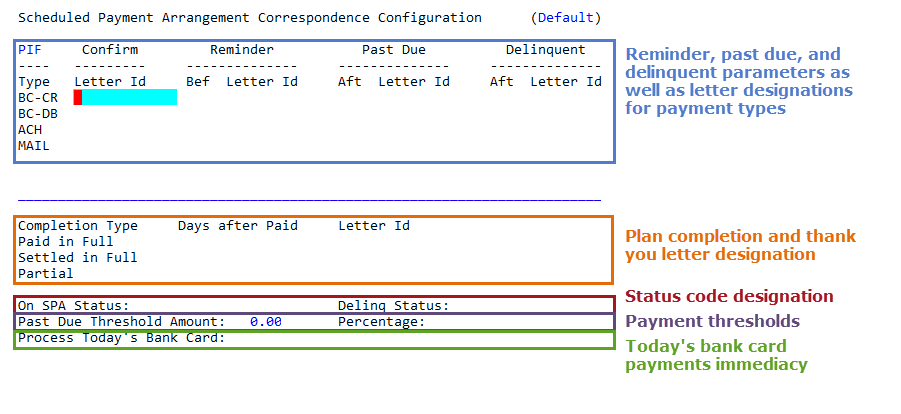
- Specify when to consider scheduled payments past due or delinquent as well as designate which confirmation, reminder, past due, and delinquent letters to send for each payment source.
- Specify when to consider scheduled payment plans complete and what thank you letters to send for paid-in-full, settled-in-full, and partial payment plans.
- Designate status codes for accounts on scheduled payment plans or delinquent.
- Designate the amount or percentage below the original payment amount that your agency will consider a payment made without triggering a late notice.
- Designate whether to immediately process bank card payments scheduled for the same day a SPA is created.
The letters that you specify in the Scheduled Payment Arrangement Correspondence screen only apply to scheduled payments. To send letters for single payments, you must generate them manually using command 5 or 5I.
The active payment types are listed in the Type column. The ones listed are those your agency configures in the Update Payment Sources routine in Menu 10.5.99. The Mail payment type is designated as a Consumer payment type because it is dependent on the customer to deliver the payment. Examples include cash, checks, and money orders. All the other payment types, such as ACH, bank card, and so on, are considered Agency payment types because they are dependent on The Collector System to process them.
To configure SPA correspondence:
-
From the Master menu, navigate to
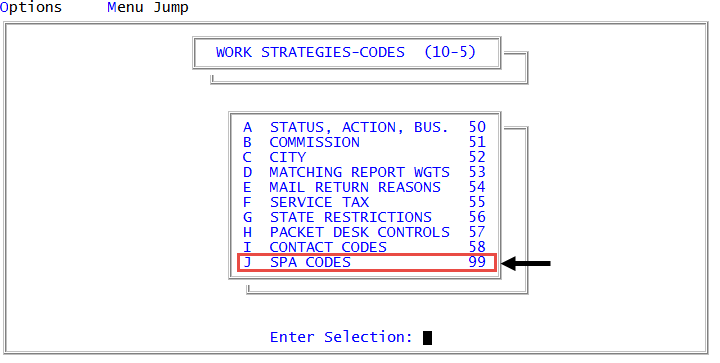
 Management Strategy > Codes > SPA Codes (menu 10.5.99).
 - In the Schedule Payment Codes Configuration window, select Update Correspondence Strategy, and press Enter or click Ok.
- The default correspondence configuration setup is for PIF. The other payment completion types must also be configured by following the steps below.
- Type /, and press Enter.
- At the Enter Option prompt, do one of the following, and then press Enter:
- To configure SPA PIF correspondence, type P.
- To configure SPA SIF correspondence, type S.
- To configure SPA partial correspondence, type PA.
- To configure an alternate set of SPA controls, type ALT.
- In the Enter Alternate Code field, do one of the following:
- To configure an alternate code, do one of the following:
- Type the code, and press Enter.
- Type ?, and press Enter.
- In the Alternate Controls window, select a code, and press Enter or click OK.
- To configure a new alternate code, type a code (up to four characters), and press Enter.
- In the Enter Code Description field, type a description.
- To configure an alternate code, do one of the following:
- In the Enter Alternate Code field, do one of the following:
- In the Confirm column, do one of the following to specify the confirmation letter to send for each payment type listed, and press Enter:
- To send a letter, do one of the following:
- If you know the letter ID, type it.
- To choose from a list of letter IDs, type ?.
- In the Letters window, select the letter ID, and press Enter or click Ok.
- To not send a letter, leave the field blank.
- To send a letter, do one of the following:
- In the Reminder column, do the following for each payment type:
- In the Bef field, type the number of days before the scheduled payment is due to send a reminder letter, and press Enter.
- In the Letter ID field, do one of the following:
- To send a letter, do one of the following, and press Enter:
- If you know the letter ID, type it.
- To choose from a list of letter IDs, type ?.
- In the Letters window, select the letter ID, and press Enter or click Ok.
- To not send a letter, leave the field blank.
- To send a letter, do one of the following, and press Enter:
- In the Past Due column, do the following for each payment type:
- In the Aft field, type the number of days after the payment is due to send a past due letter, and press Enter.
- In the Letter ID field, do one of the following:
- To send a letter, do one of the following, and press Enter.
- If you know the letter ID, type it.
- To choose from a list of letter IDs, type ?.
- In the Letters window, select the letter ID, and press Enter or click Ok.
- To not send a letter, leave the field blank.
- To send a letter, do one of the following, and press Enter.
- In the Delinquent columns, do the following for each payment type:
- In the Aft field, type the number of days after the payment is due to send the account back to the collector, and press Enter.
- In the Letter ID field, do one of the following:
- To send a letter, do one of the following, and press Enter:
- If you know the letter ID, type it.
- To choose from a list of letter IDs, type ?.
- In the Letters window, select the letter ID, and press Enter or click Ok.
- To not send a letter, leave the field blank, and press Enter.
- To send a letter, do one of the following, and press Enter:
- In the Days After Paid column, do one of the following, and press Enter:
To consider the plan complete after the default seven day waiting period and delete the plan, leave the field blank.
By default, The Collector System deletes a schedule payment arrangement for an account seven days after the final scheduled payment is posted.
- To add additional days to the default seven day waiting period to delete the plan, type a number. For example, if you type three, The Collector System deletes the plan ten days after the final scheduled payment is posted.
- In the Letter ID field, do one of the following:
- To send a thank you letter after the plan is completed, do one of the following, and press Enter.
- If you know the letter ID, type it.
- To choose from a list of letter IDs, type ?
- In the Letters window, select the letter ID, and press Enter or click Ok.
To not send a thank you letter, leave the field blank.
The Collector System sends the letter when the Days After Paid period is met.
- To send a thank you letter after the plan is completed, do one of the following, and press Enter.
- In the On SPA Status field, do one of the following to assign a new status code to the account if it is added to SPA, and press Enter:
- If you know the status code, type it.
- To choose from a list of status codes, type ?.
- From the Status Codes window, select the status code, and press Enter or click Ok.
- In the Delinq Status field, do one of the following to assign a new status code to the account if it becomes delinquent on a scheduled payment arrangement, and press Enter:
- If you know the status code, type it.
- To choose from a list of status codes, type ?.
- From the Status Codes window, select the status code, and press Enter or click Ok.
- In the Past Due Threshold Amount field, type the maximum amount your agency will accept as payment below the original requested payment amount, and press Enter. For example, if a customer owes a $100 and you enter $5 in this field, a customer that pays $95 or more will not receive a late notice.
- In the Percentage field, type a number for the percentage of the payment your agency will accept as payment below the original requested payment amount, and press Enter. For example, if you enter 10 in this field and the customer sends a payment that is 90% or more of the original payment requested, the customer will not receive a late notice.
- In the Process Today's Bank Card field, do one of the following, and then press Enter.
- To process electronic payments immediately on the scheduled payment day, type Y.
- To not process electronic payments immediately on the scheduled payment day, type N.
- To allow the user to select whether to process the electronic payment immediately, type S.
- At the Enter Option prompt, do one of the following, and press Enter:
- To save your changes, type #.
- To return to the Scheduled Payment Arrangement Correspondence Configuration screen, type /.