Creating or changing status codes
The Collector System comes with the following standard status codes:
|
Code |
Status |
Code |
Status |
|
ACT* |
Active account |
LUN |
Court refuses judgment |
|
BAF |
Bankruptcy - will file claim |
NOR |
No response to efforts |
|
BAN |
Bankruptcy - no assets |
NRP |
Account is a minor - no responsible party |
|
CAN* |
Account canceled by client request |
OCR |
Omit credit reporting |
|
CNR |
Account canceled by agency - no response |
PAY |
Payment plan in effect |
|
DEC |
Deceased - no estate or beyond claim |
PBT |
Paid before turnover |
|
DEF |
Deceased - contacting estate |
PIF* |
Paid in full |
|
DIS |
Disputed |
RAI |
Refuses payment - pending suit |
|
DUP |
Duplicate listing |
RPS |
Refuses payment - checking assets |
|
FNA |
Forwarded, not acknowledged |
RSM |
Refuses to pay - amount too small for legal |
|
FWD* |
Forwarded |
SIF* |
Settled in full |
|
FPF* |
Forwarded - paid in full |
SKN |
Skip - located at new address |
|
HSE* |
House account |
SKP |
Skip - tracing for location |
|
LBK |
Legal bankruptcy filed |
SSM |
Amount too small for legal |
|
LEG* |
Legal action taken |
STA |
Statue of limitations has expired |
|
LEX |
Legal execution on assets started |
SUS |
Suspended |
|
LPF* |
Legal - paid in full |
TOE |
Turned over in error |
|
LSF |
Legal - settled in full |
WEB |
Wage earner bankruptcy |
|
LSK |
Legal judgment concluded - hold |
WEL |
Customer is on welfare |
|
* - Codes marked with an asterisk (*) are required and must remain on the system. You should not delete or modify them. |
|||
If you need additional codes, use this routine to add and revise them.
All codes beginning with L are treated as legal status codes. You can created new codes beginning with L, but don't use them for any purpose other than legal statuses.
In addition to creating new status codes, you can give specific meaning to status codes and inhibit certain actions from taking place on an account depending on its status.
When creating a new status code, unless you specify a specific location to insert a status code in the list, the system alphabetizes the codes in the list. In order to insert a status code at a specific place in a list, you need to know the line number at which to insert it.
We recommend that you print or view a list of status codes before creating new ones. For more information, see Printing a list of the current action codes or Displaying status codes.
To create or change a status code:
-
From the Master menu, navigate to
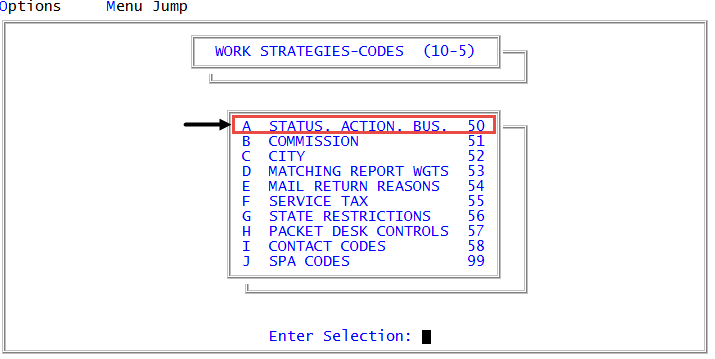
 Management Strategy > Codes > Status, Action, Bus. (menu 10.5.50).
 - In the Status/Action Code Descriptions window, select Update Codes, and press Enter or click Ok.
- In the Codes File Update/List window, select Assignment Status Codes, and press Enter or click Ok.
- In the Status Code Update window, select one of the following, and press Enter or click Ok:
To create a new status code, select Add. Proceed to Step 8.
Unless you select Insert to specify a specific location for a status code in the list, the system alphabetizes the codes in the list.
- To insert a status code at a specific place in the list, select Insert. Proceed to Step 7.
- To change a status code, select Change.
-
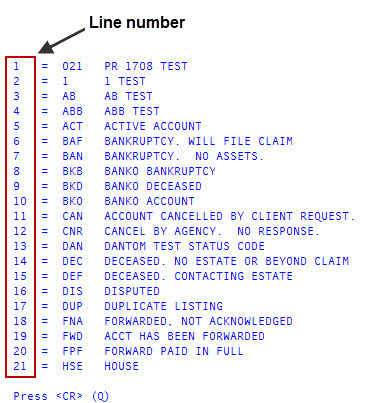
In the Enter Number to be Changed (?) window, type the line number of the status code to change, and press Enter or click Ok.
The line number is the line on the screen at which the status code is stored. To view a list of status codes, including the line number, type ?, and press Enter or click Ok. After viewing the list, press Enter. Return to Step 4.
- At the status code description - Change? prompt, click Yes.
-
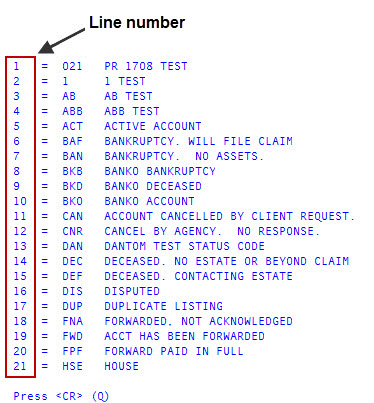
If you are inserting a status code, in the Enter Number After Which to Insert (?) window, type the line number, and press Enter or click Ok.
The line number is the line on the screen at which the status code is stored. To view a list of status codes, including the line number, type ?, and press Enter or click Ok. After viewing the list, press Enter. Return to Step 4.
- In the Enter New Code window, type the status code, and press Enter or click Ok. The code can be a maximum of three characters.
-
In the Enter New Description for status code window, type a description, and press Enter or click Ok.
The system displays a message that the status code is saved.