Changing account record notes
You cannot change notes preceded by an asterisk (*). Notes entered by a user (those not preceded by an asterisk) can only be changed the day they were entered and by the same user.
To change account record notes:
-
From the Master menu, navigate to Data Entry > Account Update (menu 1.1).
- If the Batch Number to Update window displays, select one of the following, and press Enter or click Ok:
- Use Existing Batch
- New Batch Number
- Last Batch Number
Go to Account Prompt
For more information, see Selecting batch options.
-
At the Enter Account # prompt, type the account number, and press Enter.
You may see an alert that a record is locked. This indicates that another user has the account open. The system displays a prompt with the user's initials. For a full list of the commands available at this prompt, see Working the Account# prompt options.
-
In the
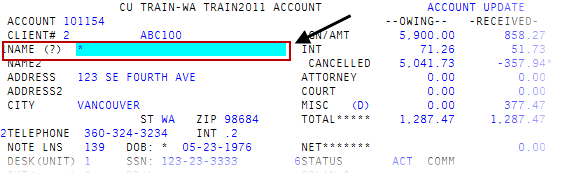
 Name field of the Account Update screen, type *, and press Enter.
For a list of the commands available in this field, see Using Name prompt options.
- If you are not already at the last page of notes, at the Enter line number prompt, type B, and press Enter.
- At the Enter line number prompt, press Enter.
- At the Enter Option prompt, to change the note, type C, and press Enter.
-
In the
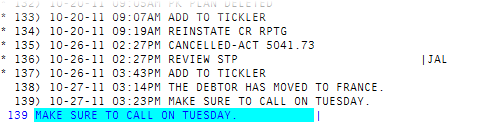
Enter Line Number window, type the number of the note to change, and press Enter or click Ok.The note line is highlighted and the cursor displays at the beginning of the note.
-
In the note line, create a new note to replace the one in the note line you entered, and press Enter.
Though the notes is changed, the note screen does not display the changes until the next time you enter the notes screen.
- In the Enter Line Number window, do one of the following:
- To change another note, repeat Steps 7-8.
- To exit, click Cancel.