Adding a scheduled payment to a SPA
You can only add a scheduled payment to a SPA if the payments already scheduled do not pay or settle the account in full.
The Collector System requires that you add any additional payments to the end of the schedule. You cannot add a payment between scheduled payments, even if the interval between two dates is more than the interval specified when setting up the SPA.
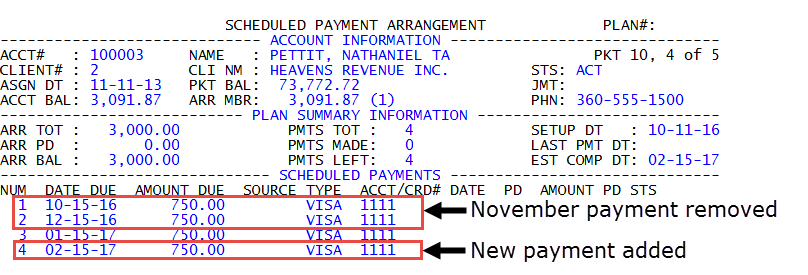
In the following example, the collector set up a partial payment SPA with a monthly interval schedule. The customer tells the collector that they cannot make the November payment and asks to make the payment at the end of the schedule. The collector deletes the November payment and adds a new payment for February 15th, shown as follows.
To add a SPA payment:
- Open an account in the Collector screen.
- At the CMD prompt, type SPA, and press Enter.
-
At the CMD prompt, type A, and press Enter.
The commands listed in the CMD prompt vary depending on if you are adding payments to a SPA with or without packeted accounts.
-
In the Payment Source Options window, do one of the following, and press Enter or click Ok:
 Use an existing payment source
Select from one of the listed payment sources, and press Enter or click Ok.
Not specify a payment source
If the customer is not sure what payment source they will use, select <No payment source>, and press Enter or click Ok.
You can also use this option if a customer will use multiple payments sources through the duration of the scheduled payment arrangement. For example, one month the customer may pay by check and another month they may use a credit card.
- In the Payment Amount field, type the amount to add as a scheduled payment, and press Enter.
-
In the Due Date field, do one of the following, and press Enter:
The date you enter must occur after the date of the final payment in the schedule.
- Type the date the payment is due.
- Type the number of days after the last scheduled payment that the new payment will be due. For example, if the final scheduled payment date is October 15th and the customer wants the payment due November 15th, then type 31 in the field.
- At the The payment is ready to be processed. prompt, do one of the following:
- To add the payment to the end of the schedule, click Build or press Enter.
- To cancel adding the payment, click Cancel.
- To file the SPA, type #, and press Enter.