Understanding The Collector System interface
When you log in to The Collector System, the Master menu displays. From here, you can access menus or system options.
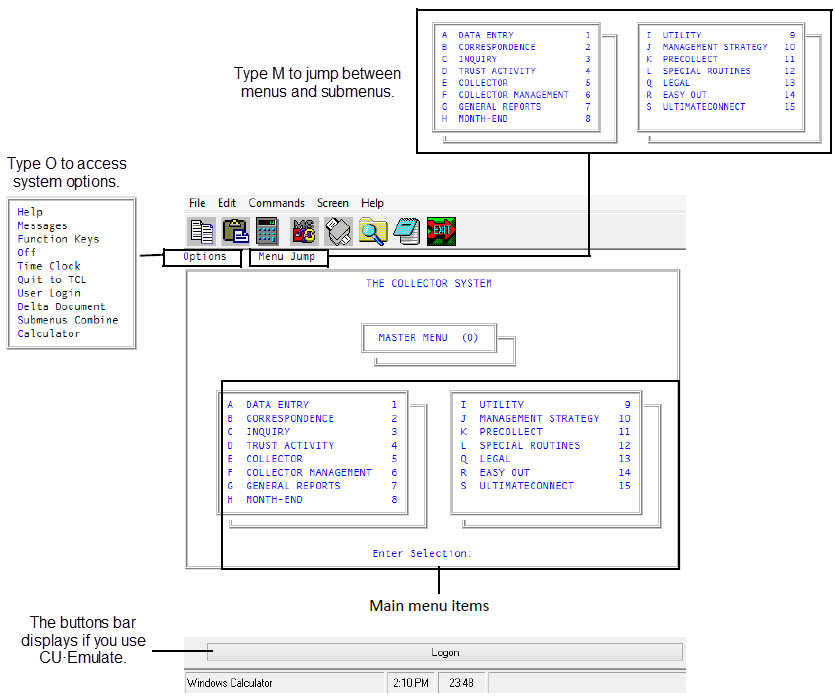
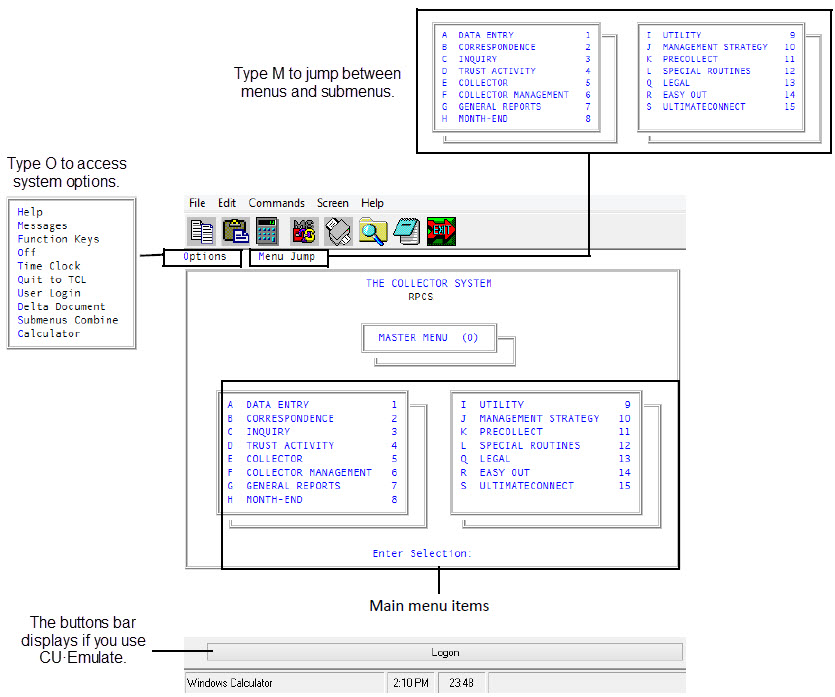
The Collector System includes three ways to interact with the system, each requiring their own navigation. These include:
- Menus—The places in The Collector System where options and routines reside. For more information, see Using menus.
-
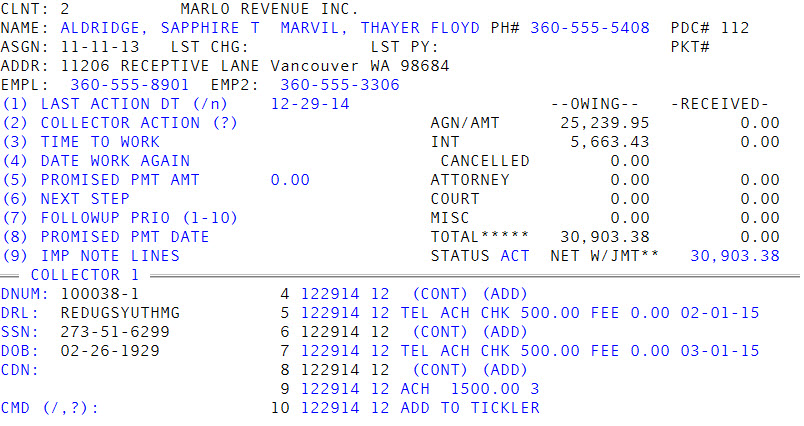
Screens—The areas of The Collector System where you perform routines and add/edit information, such as configuring system features and adding account information. Screens include multiple fields and prompts for completing the configuration of a feature or process. The following is an example of the Collector screen, which includes many different fields used to work an account. For more information, see Using screens.
-
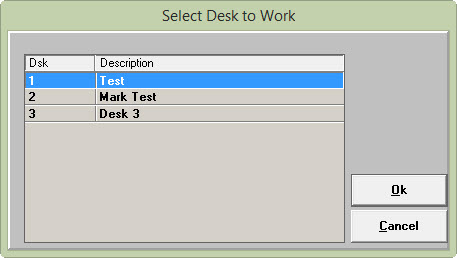
Windows—Dialog boxes that prompt you to select or enter specific information for a routine. Many windows in The Collector System allow you to enter a question mark to choose from a list of options. If this is the case, the window title will display a question mark in parenthesis. After you enter information in the window, you can press Enter or click Ok. For example, to go to the Collector screen, The Collector System displays a window prompting you to type the desk number of the accounts to view.
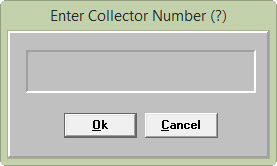
To choose from a list of the available desks, you can type a question mark.
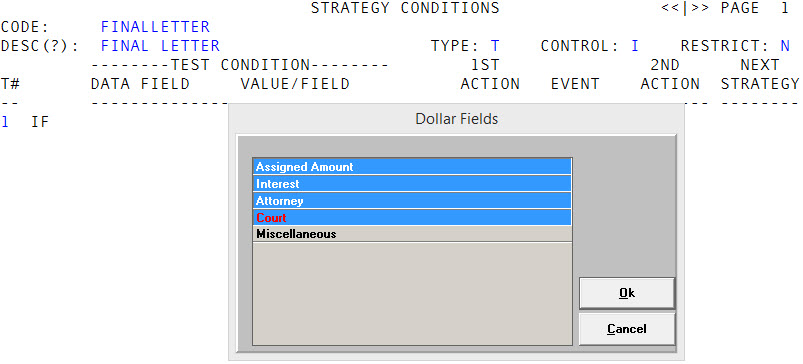
Some windows allow you to select multiple options. To do this, click the option to highlight it. To deselect it, click the option again. In the following example, you can select multiple dollar categories to monitor when creating an Account Flow Manager strategy.
You navigate differently depending on where you are within The Collector System. For example, on a menu, you can use menu jumps to go directly to the menu or screen that you choose. On a screen, you do not have the option to jump to a menu.
In general, within The Collector System, you move through fields and other prompts by doing the following:
- To move the cursor to the previous field, type a forward slash (/).
- To advance the cursor to the next field, press Enter.
- To access the OK to file prompt, type a pound sign (#).