Creating saved lists
The Collector System gives you the option from the Collector screen to create or save a list of accounts using the Inquiry screen. After you create the list, you can display the accounts on a summary screen, worked on the Collector screen, or packeted.
To create a saved list:
- Open an account in the Collector screen.
- In the CMD prompt, type =, and press Enter.
-
Locate the records needed using the inquiry options available.
Instructions and examples for each inquiry input format
 Account's Name or #
Type any of these...
Examples
Exact account name, business name, or account number.
ABC AGENCYThe exact account last name followed by a comma and all or part of the first name.
All accounts with the last name are listed alphabetically starting with the account having the first names matching your input. If you enter "Smith", the display start with "Smith, A". If you enter "Smith, H", the system displays all the accounts that start with "Smith, H".
SMITH, HA string of elements: name/client number/city/state/zip code.
If there are many accounts with the same name, the search can be narrowed using a string of search terms. This allows you to search for accounts of a particular client, or with addresses in a specific city, state, or zip code. The elements of the search must always be in this order and must be separated by slashes. Any element can be skipped, but the slashes up to the last element must be used.
SMITH/GEN100//CASMITH/GEN100SMITH////80220The first few letters of the account or business name followed by a right bracket.
CLE]The account or business name spelled phonetically followed by an asterisk (*).
The phonetic name search looks for last names that sound alike or have similar spellings, therefore you can enter the name without vowels if you like. To find a name that sounds like O'Bryan, enter BRN* and the system displays all the account names O'Brian, O'Bryan, O'Brien, Bern, Borne, Brown, and other variations.
Business accounts are included when using the phonetic search method, but only the first eight characters of the business name are used for the phonetic search. If you specify a first name when using the phonetic search, the system searches for a similar last name and exact first name. For example, entering "Adamson, Tom*" tells the system to look for any phonetic spelling of Adamson, but the first name will always be Tom.
The system searches for phonetic matches using the following rules:
- All vowels and non-alphabetic characters are ignored.
- "PH" and "PF" match "F".
- "C" matches "K" except when followed by "I" or "E", in which case "C" matches "S".
- "DT" is converted to "D".
- "SCH" always matches "SH".
- "CH" matches "CH" unless followed by "R", in which case "CH" matches "K".
- If two consonants next to each other are the same, one of them is removed.
- The first eight characters of a business name are included in the search.
BRN*Social Security #
Type any of these...
Examples
The entire social security number, with or without the hyphens.
123-45-6789123456789A partial social security number and the right bracket to search for social security numbers that start with the number(s) before the bracket.
123]A left bracket and the last four digits of the social security number to search for all social security numbers that end with those numbers after the bracket.
[6789DRL
Type any of these...
Examples
The entire DRL
TG**1234A partial DRL and the right bracket to search for those lines that start with the letter(s) before the bracket.
TG]A left bracket and the last four digits of the DRL to search for DRLs ending with those numbers after the bracket.
[1234Client Reference #
Type any of these...
Examples
The entire client reference number.
100576A partial client reference number and the right bracket to search for those client reference numbers starting with the number(s) before the bracket.
100]A left bracket and the last four digits of the client reference number to search for all numbers ending with the numbers after the bracket.
[0576Account Address
Type any of these...
Examples
The entire street address.
515 MAPLE STA partial street number and the right bracket to search for addresses that start with the number(s) before the bracket.
51]A partial street name and the right bracket to search for addresses that start with the letter(s) before the bracket.
MAP]A left bracket and the name of the street to search for all street names that end with the letters after the bracket.
[MAPLEA left bracket, the partial street name, and the right bracket to search for addresses that include any of the letters within the brackets.
[MAP]Judgment #
Type any of these...
Examples
The entire judgment number.
5689453 -
After the list of records display, at the 'S', Line#, Account#, 'Q' = prompt at the bottom of the screen, type S, and press Enter.
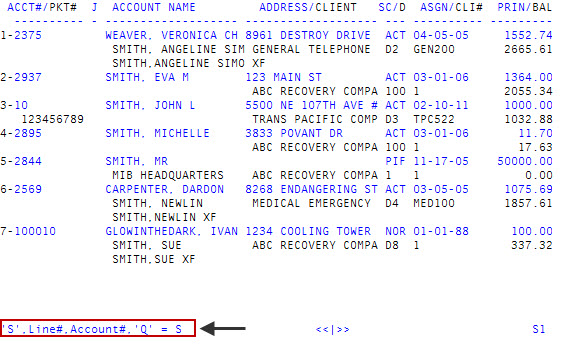
- At the Save Mode -- 'X', Line#, Account#, 'Q' = prompt, do one of the following, and press Enter:
To add an account to the saved list, type the line number or the account number.
After you enter each number, and press Enter, a message displays briefly at the bottom of the page account number Saved.
To return to Inquiry Mode to select more accounts, type Q.
You can search for different accounts using any of the inquiry search modes, and any accounts selected will be added to the same list. The Inquiry screen still contains the Save Mode -- 'X', Line#, Account#, 'Q' = prompt at the bottom of the screen. After you have finished adding accounts, type X to stop selecting accounts.
- To stop selecting accounts and exit the inquiry, type X.
- At the Account# prompt, you are now in Inquiry Save Mode, which allows you to manage and work the accounts in the saved list. Do one of the following:
To access the accounts in the order they were added to the saved list, in the CMD prompt, type a period (.), and press Enter.
You do not need to decide which saved list account to display.
- To display accounts on the saved list that were previously displayed, type a minus sign (-), and press Enter.
To create a new packet, add to an existing packet, change packet assignment, or delete from a packet, see the following:
- To display a summary screen containing the balance owing and other important information about each account record on the saved list, type DIS, and press Enter. At the prompt, do one of the following:
- To view the details for an account, type the line or account number, and press Enter.
- To remove an account from the summary screen, type D and the line number or the account number, and press Enter.
To work an account, type the account number, and press Enter.
The account number you enter does not have to be included on your saved list. When you return to the Account# prompt after working the account, you are still in the Inquiry Save Mode, as shown in the following screen example. This is particularly useful if you have to interrupt your work on a saved list to work another account. You can work the other account and then return to the saved list.
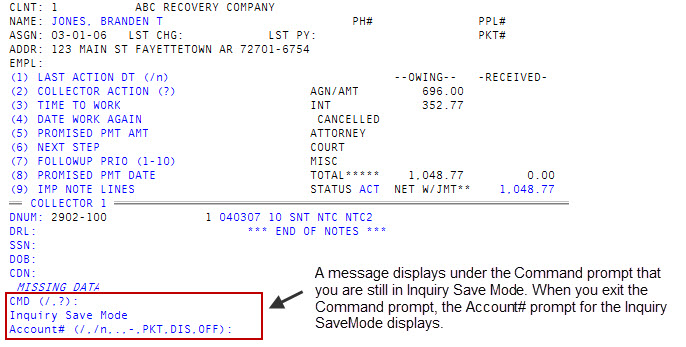
To leave the Inquiry Save Mode, type /, and press Enter.
Use caution when using this option. After the list is erased, it cannot be brought back and you will need to rebuild the list.
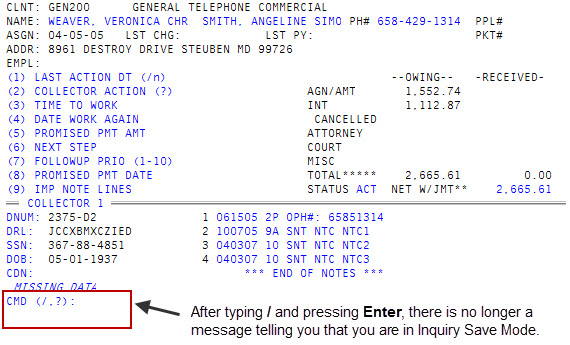
To display a packeted account or any other account from the saved list, type / and the account number, and press Enter.
For example, typing /2902 displays account 2902.
The account displays without packet information. the Dnum field contains the account number, the desk number, and the account number for the primary packet member.
To log out of The Collector System, type OFF, and press Enter.
Be aware that if you log out, The Collector System erases your saved list and you cannot bring it back.