Scheduled Payment Arrangements (SPAs)
A Scheduled Payment Arrangement (SPA) allows you to set up a series of payments over a specific time period so that a customer can pay off all or a portion of the amount owed on their account. SPAs are extremely flexible and provide your customer multiple ways to pay off a portion or all of their account balance in a way that works best for them.
You create and manage SPA payments using the SPA command in the Collector screen, which displays the Scheduled Payment Arrangement screen.
To use the SPA command, you must configure the SPA settings. If you type the SPA command, and The Collector System does not respond, you have not configured the SPA settings. For more information, see Menu 10.5.99 - SPA Codes.
 SPA screen
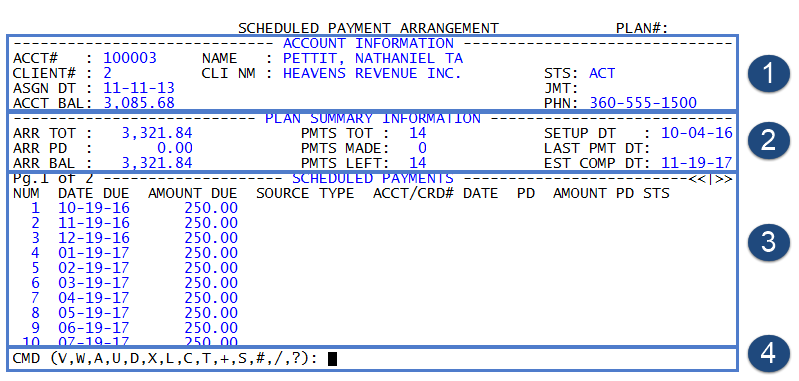
1. Account Information - Displays the basic details of the account, such as the account name and number, the client name and number, and the account status. It also displays the date the account was assigned to your agency, the account balance, if the account is on a judgment, and the account phone number.
2. Plan Summary Information - Displays the total amount included in the SPA, the SPA amount paid, and the SPA balance. It also shows you the total number of payments in the schedule, the total number of payments made, and the number of payments remaining. You can also see the date the SPA was made, the last date a payment was made, and the estimated SPA completion date.
3. Scheduled Payments/Single Payments - Displays the list of each payment included in the SPA and its details, such as the amount of each payment, when the payment is scheduled to be paid, how the customer is making the payment, the amount and date the payment was made, and its status. By using command T, you can toggle to view the amortization date for the plan. By using command V, you can view, add, and manage single payments that are not part of the SPA schedule.
4. CMD prompt - The Scheduled Payment Arrangement screen includes a CMD prompt. This prompt allows you to perform the following tasks:
|
Command |
Description |
|---|---|
|
V |
Toggle between managing scheduled and single payments. For more information, see Adding a single payment to a SPA. |
|
W |
Start the Scheduled Payment Arrangement Wizard, which allows you to add the payment amount, due date, and other parameters used to build the payment schedule. |
|
A |
Add payments to the schedule. Fore more information, see Adding a scheduled payment to a SPA. |
|
U |
Edit a single scheduled payment. For more information, see Editing a SPA payment. |
|
D |
Delete one or more scheduled payments. For more information, see Deleting a SPA payment. |
|
X |
Delete the SPA. For more information, see Deleting a SPA. |
|
L |
View the SPA activity log. For more information, see Viewing the SPA Activity Log. |
|
P |
Select a packet members to include in the SPA. |
|
C |
Managing payment sources. For more information, see SPA payment sources. |
|
T |
Toggle between displaying payment history and balance payoff details. |
|
+/- |
Go to the next page or previous page. |
|
S or Sn |
Go to the next page, or go to a specific page by typing S and a number. |
|
# |
Save changes. |
|
/ |
Exit the screen without saving changes. |
|
? |
View the Help screen. |
If your agency uses CU·Emulate, the Scheduled Payment Arrangement screen is mouse driven. This means that you can navigate to the fields in the screen by clicking them with your mouse. This also includes the commands listed in the CMD prompt. You can also use the up and down arrows on your keyboard to move to and from different fields.
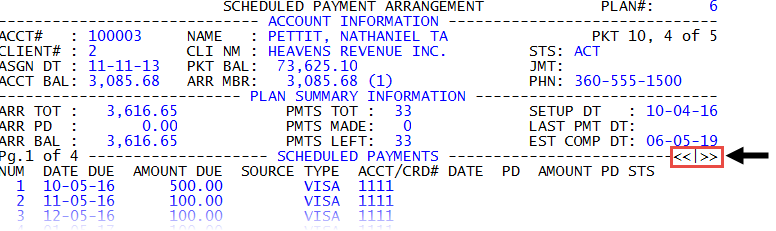
When viewing the Scheduled Payments area of the Scheduled Payment Arrangement screen, it is likely that the list of payments will span multiple pages. You can navigate to these different pages by using command S, command S and the page number, +, or -. You can also click the right or left double arrows to move forward and back from screen to screen, shown as following:
You can create three types of SPAs:
- PIF - Schedule payments to pay off the accounts in full. To determine the amount or number of payments, you can:
- Enter the amount the customer wants to pay each month, and The Collector System automatically calculates the number of payments the customer needs to make based on the interval between payments (monthly, semi-monthly, and so on). For example, a customer can only afford to pay $100 a month to pay off a $1000 account. The Collector System calculates that it would take 10 months to pay off the account, assuming the interest rate is zero. Interest accrued over the life of the arrangement increases the length of the plan or the payment amount.
- Enter the number of payments a customer wants to make, and The Collector System automatically calculates the amount of each payment the customer needs to pay based on the interval between payments. For example, a customer wants to pay off an $2000 account in ten months. The Collector System calculates that the customer would need to pay $200 each month, again, assuming that the interest rate is zero.
- SIF - Schedule payments that settle the account in full. You need to specify the amount your agency has agreed to recognize as settled-in-full as well as the number of payments to pay off the account. After the last scheduled payment is posted, The Collector System changes the account status to SIF.
- Partial - Schedule payments that pay off a specific amount of the total amount owed. You need to specify the amount a Partial SPA will pay off. If you add a payment to a Partial SPA that pays off the remainder of the account, the SPA type automatically changes from Partial to PIF.
Tips and things to keep in mind
- Customers cannot participate in a SPA under the following conditions:
- If the customer is on a current payment plan, post-dated check plan, or another SPA
- If the amount owed has been canceled or is zero or less
- The account status code is PIF or SIF
-
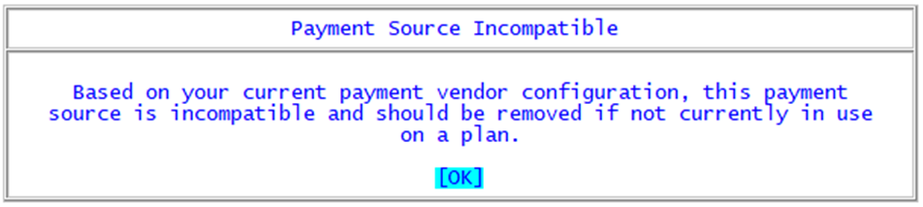
When an agency upgrades from a previous payment provider to a new one (like going from Ultimate Contacts with BillingTree to Finvi Payments using Payment Service), the previously established payment arrangements will still exist in The Collector System. These older payment sources are linked to the old payment provider and shouldn't be selected when setting up new payments. Only the new provider should be used to setup new payments. When users attempt to use an old payment source to make new payments or payment arrangements, they will receive this message, and not be allowed to proceed:
- Depending on how your agency sets up SPA, you may encounter restrictions when setting up a SPA. For example, you may only be allowed to set up SPAs above a certain dollar amount for accounts belonging to specific clients or you may not create a SPA payment below a specific dollar amount for all accounts. You also may not set up a SPA if the account has a status code designated as a paid status. If you encounter any of these restrictions, The Collector System will display a warning message, and you will not be able to save the SPA.
-
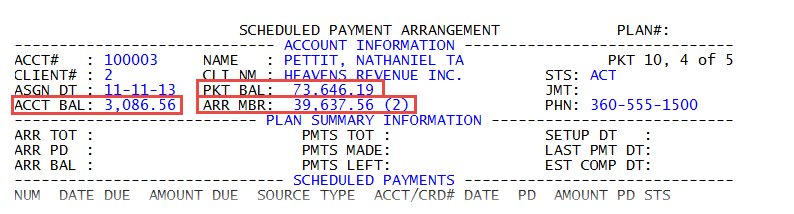
You can set up SPAs for one or more accounts in a packet. To do this, use command P to select the accounts in the packet to include in the SPA. The Scheduled Payment Arrangement screen changes slightly to include information related to the packeted accounts. The Acct Bal field displays the amount owed by the account, the Pkt Bal field displays the total amount owed by the packet members, and the Arr Mbr field displays the current balance of accounts included on the SPA. In the case of partial or SIF SPAs, this balance will not be paid off. The Arr Tot field shows the total dollar amount expected to be paid by the SPA. This amount can be both more or less than the Arr Mbr total. The number in the parentheses represents the number of packet members included in the SPA. In the following example, the 39,637.56 (2) in the Arr Mbr field means that there are two accounts that are included in this SPA whose total amount owed is $39,637.56.
-
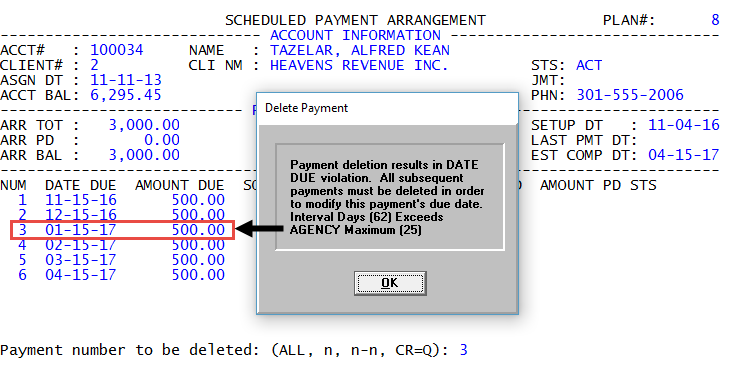
The Collector System may prevent you from deleting a payment in a schedule if the time between the previous and next payment is too long. The maximum and minimum times allowed between payments, referred to as the payment interval, is configured by your agency. In the following example, the collector has set up a Partial SPA and attempts to delete the third payment due on January 15th. Because the agency has set up a maximum of 25 days between payments, The Collector System displays a warning that removing the payment means that the interval between the December and February payments exceeds the 25 day maximum. The best course of action to remove the January payment from the schedule is to simply delete all of the payments starting with January, and add a new series of payments that best meets the customer's needs.
- Unlike a payment plan, you cannot remove an account from a SPA. The only way to fix a SPA with an account you do not want to include is to delete the SPA and create a new one.
-
You do not have to select a payment source when setting up a SPA. The customer can decide what payment source they want to use to make the payment as long as they make the payments according to the agreed-upon schedule.
SPA uses your existing Recording customer ACH authorization.
-
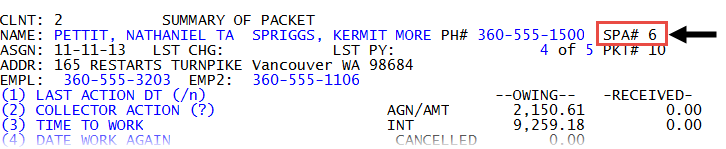
When you create a SPA, in the Collector screen, the PPL# field changes to the SPA# field, shown as follows.
- After you create and save a SPA, the account is removed from the WIP. If a customer forgets to make a scheduled payment and/or a balance remains on the account after the SPA is completed, then The Collector System returns the account to the WIP.
- To add another account to a SPA that includes packeted accounts, you need to delete the SPA and create a new one that includes any new accounts to add. This means that the initial SPA is no longer valid and the customer will need to approve the second SPA if the customer wants to use ACH to pay for a scheduled payment.
- There are times when the account balance to be paid by the SPA (Arr Bal field) does not add up to the amount owed by the customer. This can happen under the following circumstances:
- If the SPA is set up to pay only a portion of the amount owed (Partial SPA).
If the SPA includes some but not all of the accounts in a packet.
In the following example, only two members of the packet are included in the SPA. This is indicated by the number in the parentheses in the Arr Mbr field. While the total packet balance is $73, 646.19, this SPA will only pay the balance for two of the accounts in the packet, resulting in $39,637.56 in the Arr Mbr field.
SPAs are very flexible by allowing you to set up various payment amounts, due dates, and payment sources that meet the needs of the customer. While a SPA is made up one or more scheduled payments, you may want to group similar payments together into a series. This is helpful when the customer wants to customize their SPA with different payment amounts, use various payment sources, or have different payment due dates.
Examples
A collector at a fictitious agency, Lake Assets, wants to collect a higher initial payment from a customer as a "down payment" for setting up a schedule of lower payments to pay off the account. While the collector could do this by simply taking an immediate payment and then setting up a SPA, The Collector System would not take into account the immediate payment. Depending on the circumstances, we recommend creating a series of one payment for the initial amount, and then create another series for the remainder of the payments.
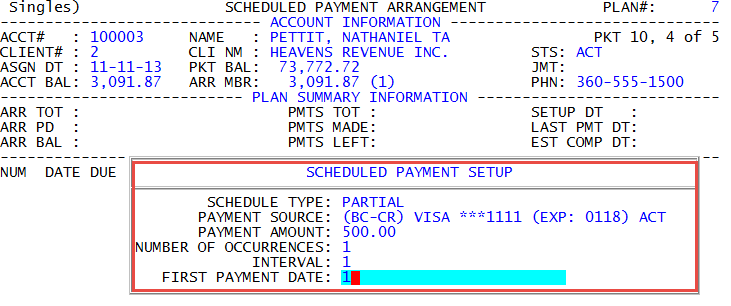
The collector asks the customer for an immediate $500 payment in exchange for scheduling a lower $100 monthly payment until the account is paid. To do this, the collector first creates a Partial SPA schedule type for $500. The collector sets up the SPA to occur only once, as defined in the Number of Occurrences field and then sets the Interval field to one. This means there is only a one day between payments, but since this is only a single payment The Collector System will not schedule any further payments. Because the collector wants the payment to process as soon as possible, he enters one in the First Payment Date field. This means the payment is due one day after today's date. The following is an example of a single payment entered as a scheduled payment:
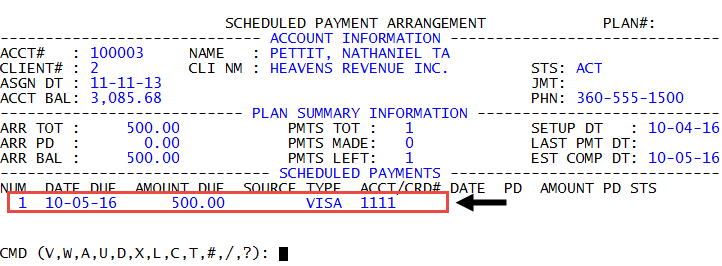
This series of one single scheduled payment is entered by the collector and added to the Schedule Payment area of the screen, shown as follows.
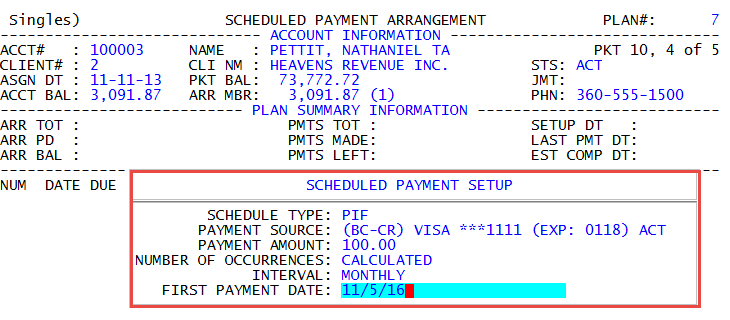
The collector then sets up another series of $100 monthly payments until the account is paid off. To do this, the collector sets up a PIF SPA schedule type. In the Payment Amount field, the collector enters the $100 monthly payment and leaves it to The Collector System to calculate the number of payments needed to pay the account in full. Notice that The Collector System automatically sets up this schedule so that the first monthly payment is due on November 5th, the month following the initial $500 SPA payment.
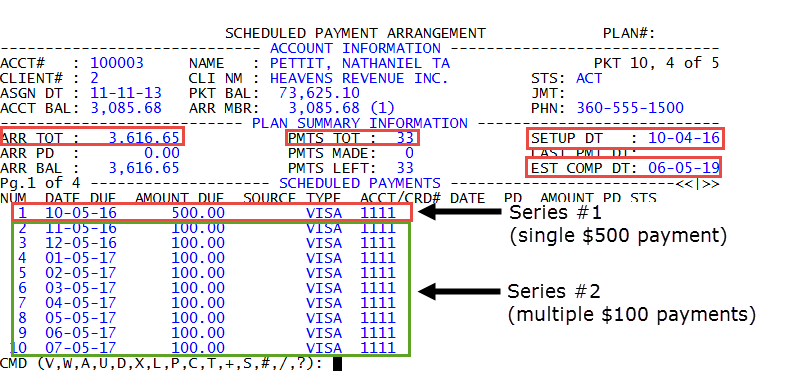
Now the Scheduled Payments area displays the first series with the single $500 payment and the second series of $100 monthly payments.
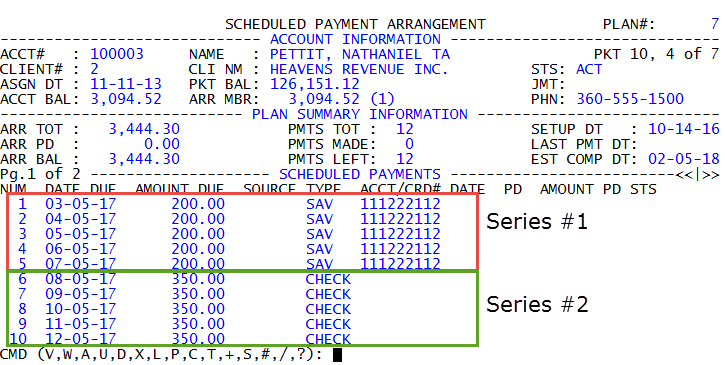
In another example, the customer wants to set up a payment plan with the agency, but can only afford $200 payments for the next five months. The customer is starting a new job in August 2017 and will be able to pay $350 per month to pay off the rest of the account.
The collector first creates a partial SPA and creates a series of $200 monthly payments for the next five months. The first $200 payment is due March 5th, 2017, and the last $200 payment is due July 5th, 2017. The collector then adds a second series of payments that increases the payment amount to $350 per month until the account is paid in full. When the collector adds the second series of scheduled payments, The Collector System changes the First Payment Date field to Next Payment Date and automatically enters August 5th, 2017.